Full move for Kubernetes universes EARLY ACCESS
EA Full move for Kubernetes universes lets you modify storage attributes such as volume count, storage class, and volume size on existing universes. Decreasing volume size is supported and is carried out through a full move (persistent volumes cannot be shrunk in place).
Version requirement
Full move for Kubernetes universes requires YugabyteDB v2026.1.0.0 or later on the universe. Universes on earlier database versions cannot use this feature.- Non-operator universes: Universes created and managed through the YugabyteDB Anywhere UI or API using Helm charts. Change volumes using Edit Universe.
- Operator universes: Universes managed with the YugabyteDB Kubernetes Operator. Change volumes by updating the
YBUniverseCRD. If you imported a Helm-managed universe to the Operator, use the Operator workflow going forward.
Non-operator universes
Full move applies to universes that YugabyteDB Anywhere manages via Helm charts. For information on creating these universes and setting initial volume configuration, refer to Create a multi-zone universe and Configure a Kubernetes provider.
Modify volume attributes
To change storage class, volume count, or volume size on a running universe:
-
Navigate to your universe and choose Actions > Edit Universe. For general edit-universe options, refer to Modify universe.
-
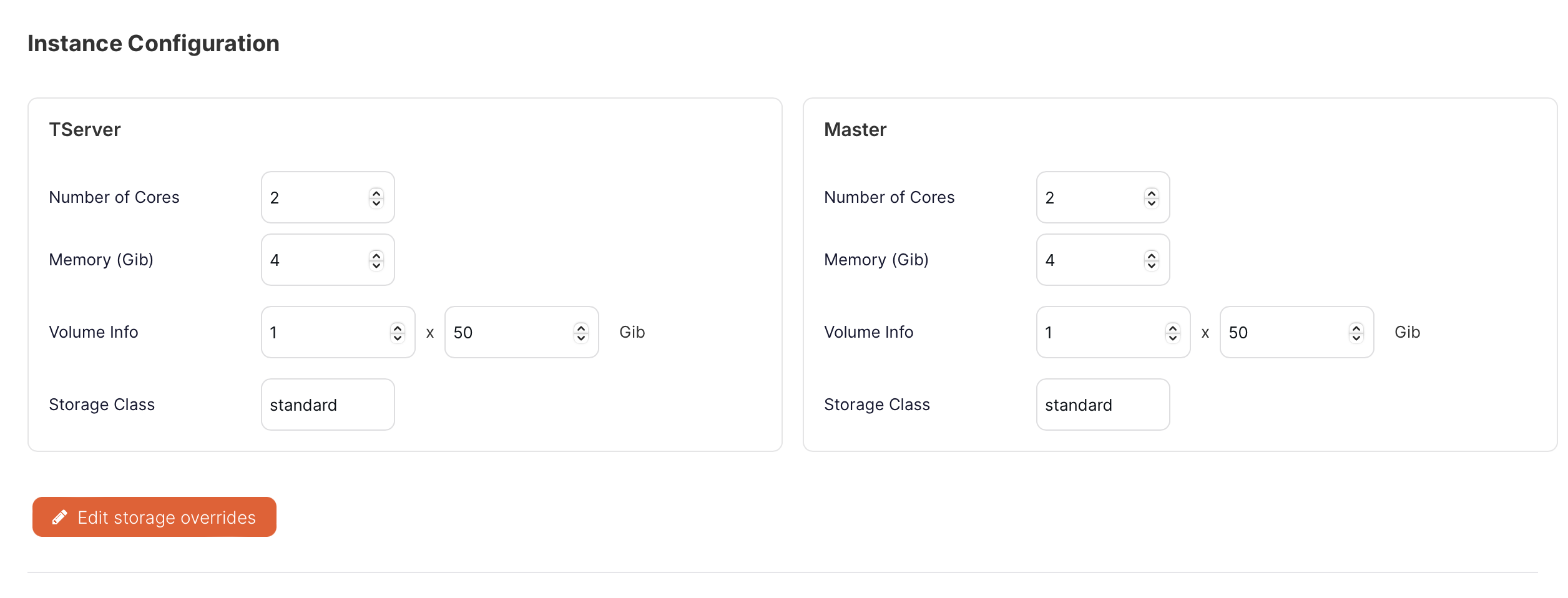
Edit the volume fields under Instance Configuration for TServer and Master as needed.
-
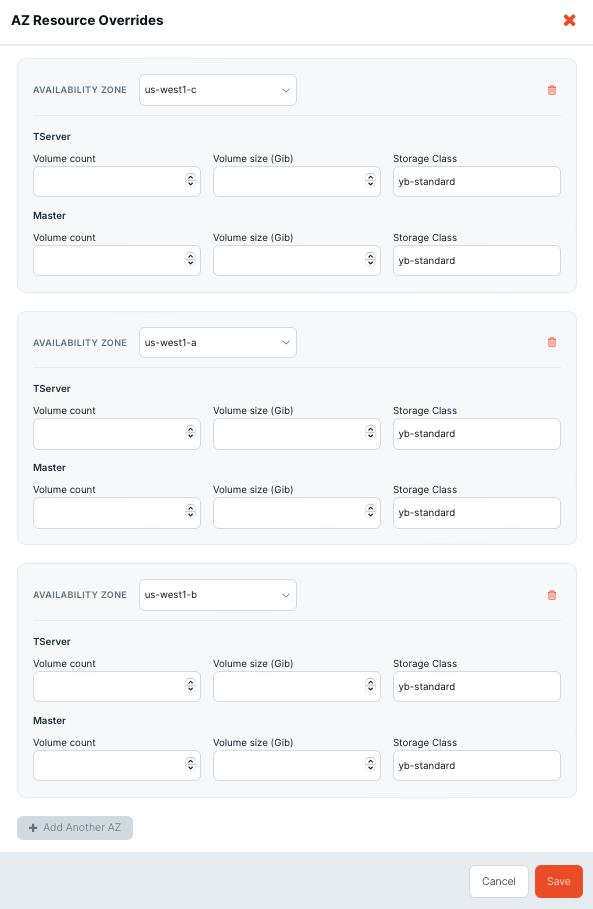
To edit per-AZ storage overrides, use Edit storage overrides in the UI.
-
Click Save, confirm the placement summary, and monitor the Edit Kubernetes Universe task on the universe Tasks page.
To change other Helm chart settings (resources, labels, and so on) without changing storage class or volume count, use Edit Kubernetes overrides instead.
How volume attributes are determined
Existing universes are migrated so that the volume attributes in use are stored as per-availability zone (AZ) overrides and applied on each Helm operation.
New universes maintain backward compatibility. When deciding per-AZ volume attributes, YugabyteDB Anywhere considers all sources, including provider per-AZ storage class and provider overrides. For storage class recommendations, refer to Hardware requirements for pods.
When you add a new AZ through Actions > Edit Universe, volume attributes for that zone are populated from the same sources the first time. After that, persisted attributes are used.
For each AZ, the effective volume attributes are the merge of that AZ's overrides and the base fields deviceInfo (TServer) and masterDeviceInfo (Master), with AZ overrides taking precedence.
The UI may show standard for the storage class in base volume attributes when the field was not populated. The values in use come from AZ overrides merged with the base values.
Modifying base volume settings when AZ overrides exist
Because AZ overrides take complete precedence, changes to base volume fields through Edit Universe > Instance Configuration only affect AZs that do not have their own overrides configured. If an AZ already has volume overrides defined, the base change has no effect on that zone.
If all AZs in the universe have volume overrides configured, modifying base volume values has no effect, that is, no AZ uses the base settings. To change volume attributes in that case, use Edit Universe > Edit Storage Overrides to update the per-AZ overrides directly.
Example
Non-operator universes store per-AZ volume overrides under userIntent.userIntentOverrides.azOverrides. Each AZ is identified by a UUID. Under each AZ, perProcess can define TSERVER and MASTER deviceInfo overrides (for example, storageClass, numVolumes, volumeSize).
The following illustrates userIntent with userIntentOverrides.azOverrides after a volume edit. It is stored configuration, not a file you upload.
"userIntent": {
  "numNodes": 3,
  "ybSoftwareVersion": "2026.1.0.0-b1",
  "accessKeyCode": "yugabyte-default",
  "deviceInfo": {
    "volumeSize": 50,
    "numVolumes": 1,
    "storageClass": "standard"
  },
  "masterDeviceInfo": {
    "volumeSize": 50,
    "numVolumes": 1,
    "storageClass": "standard"
  },
  "userIntentOverrides": {
    "azOverrides": {
      "ecabfc93-6559-4c53-8d6b-aa66a08e8263": {
        "perProcess": {
          "TSERVER": {
            "deviceInfo": {
              "storageClass": "yb-standard"
            }
          },
          "MASTER": {
            "deviceInfo": {
              "storageClass": "yb-standard"
            }
          }
        }
      },
      "c4143bba-96ce-4a4c-9b4c-9f9d4fd6860f": {
        "perProcess": {
          "TSERVER": {
            "deviceInfo": {
              "storageClass": "vk-standard"
            }
          },
          "MASTER": {
            "deviceInfo": {
              "storageClass": "yb-standard"
            }
          }
        }
      }
    }
  }
}
Operator universes
To use full move on universes managed by the YugabyteDB Kubernetes Operator, configure the tserverVolume and masterVolume fields on the YBUniverse CRD (volumeSize, numVolumes, storageClass). Each field supports a perAZ section for AZ-specific values. Changing any of these attributes, including decreasing volumeSize triggers a full move. For creating operator-managed universes, refer to Create a universe. Per-AZ storage class on the provider is configured through Create a provider (kubernetesStorageClass).
If you migrated a Helm-managed universe to the Operator using Import universe, edit volume settings on the YBUniverse CRD; the UI blocks most edit actions on imported universes.
When perAZ overrides are present, volume attributes for an AZ are the merge of that AZ's perAZ values and the base tserverVolume or masterVolume fields, with perAZ taking precedence. If perAZ values are absent for an AZ, the base volume attribute values apply entirely.
When perAZ overrides are not used, the provider storage class applies. If the provider has no storage class, YugabyteDB Anywhere falls back to the base tserverVolume and masterVolume fields.
After you use the perAZ section once, you cannot remove it from the CRD. To use only the base values for all AZs again, set perAZ to an empty object (perAZ: {}).
For field definitions and schema details, run kubectl describe crd ybuniverse.
Example
The following YBUniverse spec uses tserverVolume and masterVolume with perAZ overrides for us-west1-a:
apiVersion: operator.yugabyte.io/v1alpha1
kind: YBUniverse
metadata:
  name: universe-1
spec:
  numNodes: 3
  replicationFactor: 3
  enableYSQL: true
  enableNodeToNodeEncrypt: true
  enableClientToNodeEncrypt: true
  ybSoftwareVersion: 2.31.0.0-b30
  enableYSQLAuth: false
  enableYCQL: true
  enableYCQLAuth: false
  enableIPV6: false
  enableLoadBalancer: false
  tserverVolume:
    numVolumes: 1
    volumeSize: 80
    perAZ:
      us-west1-a:
        volumeSize: 80
        numVolumes: 1
        storageClass: vk-standard
  masterVolume:
    numVolumes: 1
    volumeSize: 60
    perAZ:
      us-west1-a:
        volumeSize: 60
        numVolumes: 1
        storageClass: vk-standard
Apply changes with kubectl apply to the YBUniverse resource. The Operator reconciles the universe and runs the full move workflow. Monitor tasks in YugabyteDB Anywhere on the universe Tasks page.
Batch pod moves
Full move can move pods in batches instead of all at once. Control batching with the Number of nodes to move in a given batch during full move universe runtime configuration option (config key yb.task.full_move.roll_batch_size). Refer to Manage runtime configuration settings.
The following table describes how each setting for yb.task.full_move.roll_batch_size affects how pods are moved during a full move:
| Value | Behavior |
|---|---|
0 (default) |
All pods that must move are moved in a single operation. |
| Non-zero | Each availability zone moves pods in parallel, in batches of the given size. |