Cluster Load TECH PREVIEW
Monitor your cluster load using the Cluster Load dashboard. The dashboard displays data from the Active Session History in the Cluster Load Overview chart. (This is also the primary data source used for anomaly detection.) Use this view to answer the question Was the system overloaded, and why.
The dashboard shows the status of your cluster at a glance:
- When it was idle, active, or bottlenecked.
- What type of load - CPU, I/O, or something else.
Load monitoring is only available for clusters running YugabyteDB v2024.2.7 and later.
Tech Preview
Load monitoring is currently in Tech Preview. To try the feature, contact Yugabyte Support.To view cluster load, navigate to the cluster Performance tab and choose Cluster Load. You can choose between Overall Load and Load by Database.
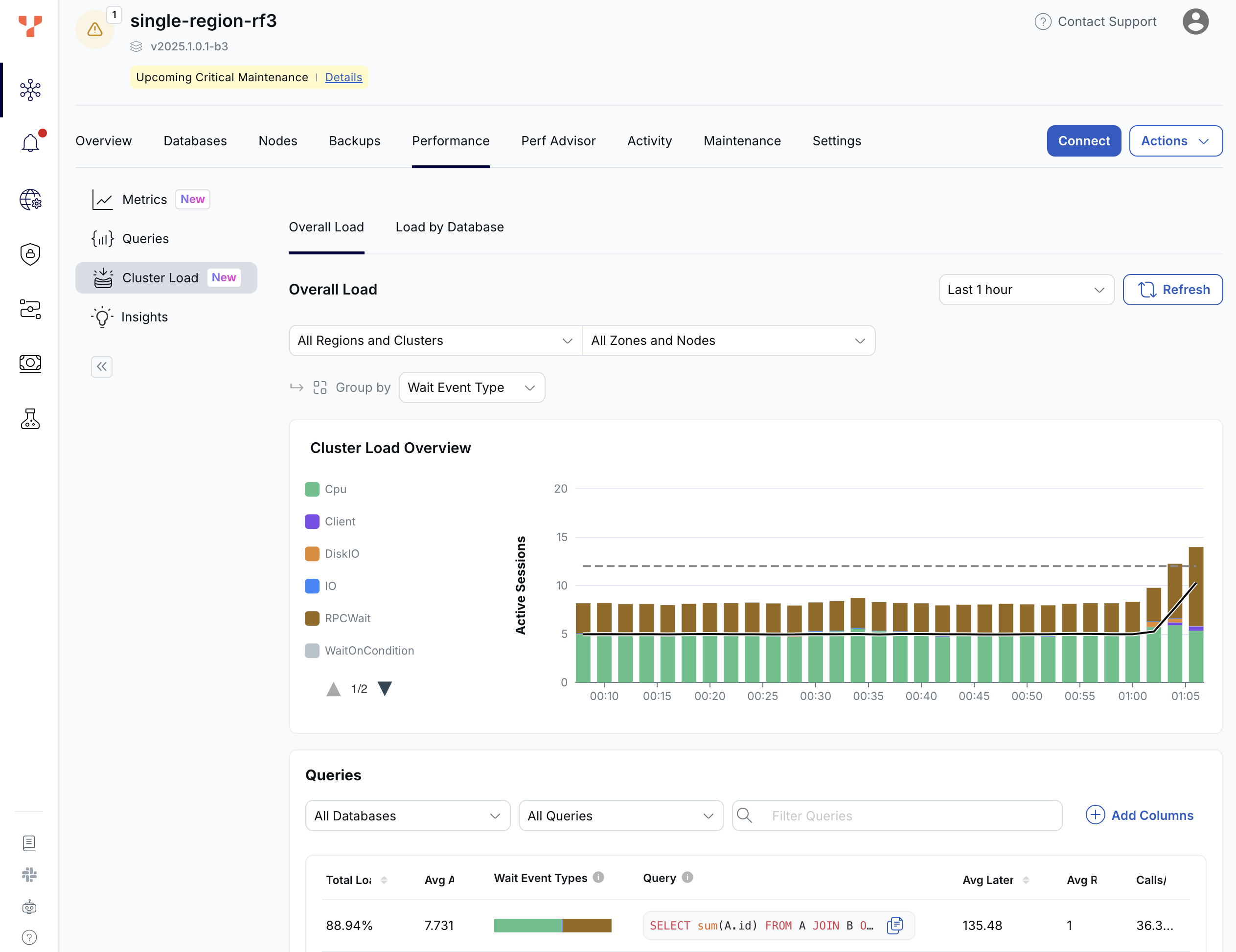
Overall Load
Cluster Load Overview
The top section shows the cluster load chart. The bars show the number of active connections to the cluster over time. These connections can be YSQL (PostgreSQL) processes or TServer threads. The black line represents the number of running queries over time.
Each bar shows the state of connections, as follows.
| Connection State | Description |
|---|---|
| CPU | Actively using CPU on sampled connections (often YB-TServer / tablet RPC threads executing DocDB work) rather than blocked in waits. Compare the stacked CPU height to the dashed total vCPU line; above the line means demand may exceed available CPU. |
| Client | Application-side pacing on the PostgreSQL protocol: the Client wait type while the driver reads result sets or submits the next command. |
| DiskIO | DocDB tablet / RocksDB disk path. Tablet server storage I/O (for example WAL append/sync on TServers, tablet files, compaction-related disk waits). This is Disk IO / DocDB instrumentation, not Postgres-backend local IO (next row). |
| IO | Postgres IO wait type. Filesystem I/O entirely inside the YSQL PostgreSQL backend's local files: WAL, catalog/mapping files, temp Buffile spills, COPY/stream reads or writes, logical decoding files, checkpoints, replication slot files, lock/datadir bookkeeping, and so on. Larger slices point to heavyweight temp files, DDL/catalog churn, WAL pressure on the Postgres data directory, not primary tablet DiskIO (previous row). |
| Lock | Waiting on heavyweight Lock (typically row/table), LWLock, or BufferPin class waits; PostgreSQL-visible lock contention. |
| RPCWait | Blocked RPCWait / WaitingOnTServer on RPCs served by TServers (catalog/table/index access, transactional doc operations): YSQL backends waiting on the DocDB side to finish work. |
| Timeout | Timeout waits: sleeps such as pg_sleep, transaction conflict backoff, vacuum pacing, replay/checkpoint throttles, and other deliberate delays; not waiting on Client I/O or lock contention (see the Lock row). |
| TServerWait | TServerWait class, usually YSQL backend processes waiting while TServer/tablet-thread work progresses; stacks often inverse to CPU on active tablet handlers. |
| WaitOnCondition | Not doing CPU work. Stalled inside YugabyteDB on timing or internal coordination (read/safe time, reactors, Raft, RocksDB scheduler, RPC completion handoff). That is, not categorized as Lock, DiskIO/IO, or RPCWait. Unusually tall bands imply synchronization or internal backpressure worth drilling down with fuller wait views. |
The colors in the load chart indicate where time is being spent, such as CPU, I/O, locks, or RPC wait. This provides a breakdown of what is contributing to the overall load.
A key signal in this chart is CPU usage. The green portion of the bars represents CPU demand, while the dashed gray line represents total CPU capacity (that is, the number of vCPUs in the cluster). When CPU demand exceeds this line, the cluster is CPU-bound and queries are competing for CPU resources. In that case, performance can be improved either by adding more CPU capacity or by optimizing the queries that are consuming the most CPU.
The colors in the chart are typically CPU for the active TServer threads and TServerWait for those YSQL processes waiting for the TServer threads to complete their parts of the SQL query.
If other waits show up as a significant portion of the bar chart that could indicate some kind of bottleneck.
For more information, refer to Wait events.
Queries
The bottom section of the dashboard shows the top SQL statements contributing to the load seen in the Load chart, helping identify which queries are driving resource usage.
Select a query in the list to view details. This includes cluster load for the selected query, performance metrics, and tables and tablets accessed.
A typical query involves multiple components. An application sends a query to a YSQL process, which then communicates with its local TServer. The TServer may fan the query out to other nodes that hold the required data. As a result, even a single query often results in multiple active connections, at least one YSQL process, and one or more TServer threads.
Load by Database
Activity by database
The top section of the dashboard shows the Activity by Database chart, showing the number of active sessions for each cluster database through time.
Events Load by Database
The bottom section of the dashboard shows the event load for each database.
Click the + to view a breakdown of database load by query. Select a query in the list to view details. This includes cluster load for the query, performance metrics, and tables and tablets accessed.