Manage accounts EARLY ACCESS
Overview
Using multi-account management, you can add multiple accounts for your organization, each with its own access control.
Before multi-account management
Currently, when you sign up for YugabyteDB Aeon, you get a single account, and multi-account management is not enabled.
- All users you invite, all clusters you create, billing, VPCs, API keys, and access controls live inside that one account.
- Users can only belong to that one account, and the same user cannot sign in to access a second, separate Aeon account.
- If you require environment separation (for example, staging vs. production) or team isolation, you must create entirely separate Aeon sign-ups with different email addresses.
What multi-account management adds
Multi-account management decouples the user entity from the account entity. A single user can be a member of multiple accounts simultaneously, with a different role in each. Each account remains fully isolated:
- Clusters - each account has its own clusters; no cross-account visibility.
- Billing - each account has its own billing profile and usage tracking.
- Users and roles - each account controls its own user list and RBAC independently.
- VPCs, IP allow lists, API keys, and other resources - all scoped to the account.
This is conceptually similar to how AWS Organizations or GCP projects work: a single identity can access multiple isolated environments, choosing which one to enter at sign-in.
A common use case is separating environments (development, staging, production) or separating business units or product lines that need distinct budgets, teams, and clusters, while still allowing designated administrators to move between accounts with the same login.
Multi-account is in Early Access; see the Limitations.
Manage accounts
To manage accounts, click the Profile icon in the top right corner and choose Manage Accounts to display the Manage Account page.
Note that only users designated by Yugabyte Support when you enabled the feature can add and manage accounts.
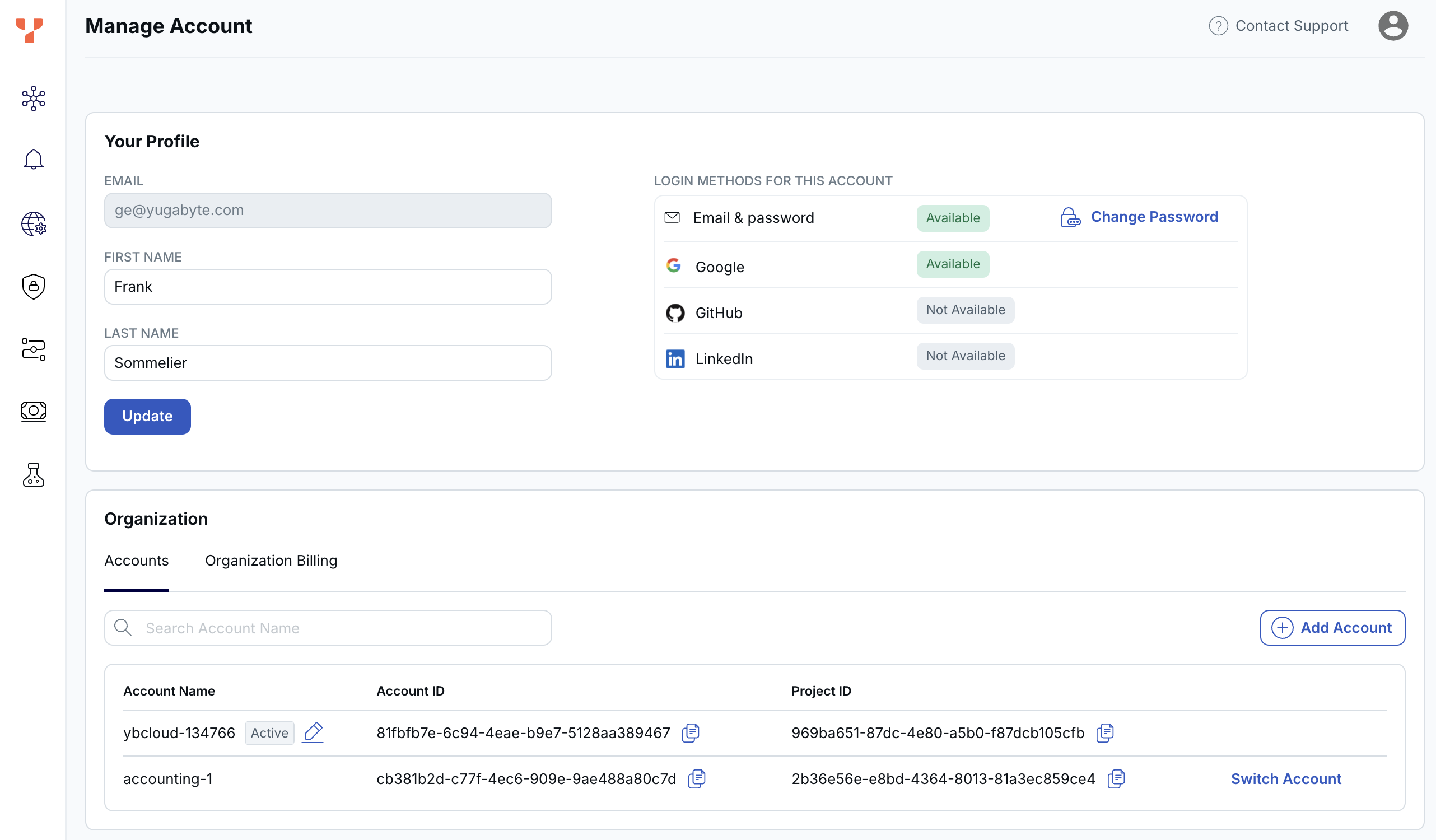
Your accounts are listed under Organization.
Keep in mind the following when using multiple accounts:
- When adding users, be sure to switch to the account where you want to add them first.
- To add users to multiple accounts, you must sign in to each account and send an invitation.
- If multiple accounts are enabled, all users must choose the account to sign into when they sign in.
- Each account uses a different billing profile. You must set up a new billing profile for each account you create.
Add accounts
By default, your organization has a single account.
To add an account:
- Click the Profile icon in the top right corner and choose Create Account, or, on the Manage Account page, click Add Account.
- Enter a name for the account and click Create Account.
The account is listed under Accounts on the Manage Account page.
Switch accounts
To switch to an account:
- On the Manage Account>Accounts tab, click Switch Account for the account you want to switch to.
- Sign in to the account.
Limitations (Early Access)
This feature is in Early Access. The following limitations apply to the current release; they are being addressed in the GA version.
- You must contact Yugabyte Support to enable it. Contact Yugabyte Support to enable multi-account for your organization. Once enabled, the users designated by Yugabyte Support (when enabling the feature) can create and manage accounts in Aeon without further support.
- No automation. Account management is UI-only, there is no API, Terraform provider, or CLI support for creating or deleting accounts. Automation of account lifecycle management is planned for GA.
- Accounts cannot be deleted. Once created, accounts cannot be removed. This restriction will be lifted in the GA release.
- No aggregated user management. You cannot view all users across all accounts in one place, or remove a user from all accounts at once. User management must be done account by account.
- SSO requires a separate app per account. If your organization uses federated authentication (SSO/IdP), you must configure a separate identity provider application for each account. This differs from the industry-standard experience (AWS, GCP) where one IdP application covers all accounts. Single IdP configuration at the organization level is planned for GA.
- Account switching requires reauthentication. Switching between accounts currently requires signing in again. Seamless account switching without reauthentication is planned for GA.
- No organization-level overview. There is no consolidated view of all accounts, their users, or cross-account activity. An organization management layer with aggregated views is planned for GA.