Autoscaling EARLY ACCESS
Autoscaling adds or removes nodes in a YugabyteDB Aeon cluster as CPU and connection load rise and fall, keeping the cluster between the minimum and maximum size you set.
Many workloads follow a pattern: traffic that climbs through the business day, or demand that grows or declines over weeks and months. Those clusters are usually sized for peak load and adjusted by hand. Autoscaling keeps the cluster matched to demand, with less manual work.
Autoscaling fits gradual, sustained changes in demand. For a sudden spike, such as a product launch or flash sale, scale the cluster manually ahead of time. Note that when Autoscaling is enabled, manual horizontal scaling is restricted to the configured Autoscaling policy range; raise the policy maximum first.
Autoscaling can help you:
- Add capacity as workload demand increases.
- Reduce unused capacity when demand decreases.
- Spend less time resizing clusters by hand.
- Keep the cluster inside the size limits you define.
Autoscaling scales the cluster horizontally by adding or removing nodes. To change vCPUs, disk size, or IOPS on existing nodes, scale the cluster manually.
How autoscaling works
Autoscaling evaluates your cluster's metrics against the rules in its autoscaling policy, and scales only when a rule holds for its full evaluation window.
An autoscaling policy defines when to add or remove nodes. A policy includes:
- Minimum and maximum number of nodes
- Scale-out rules
- Scale-in conditions
- Number of nodes to add or remove
- Evaluation windows
- Cooldown periods
Autoscaling uses the following signals:
| Signal | Description |
|---|---|
| CPU | Average CPU use across the cluster. CPU is the primary autoscaling signal. |
| Connections | Connection use relative to the number of available connections. Use this as an additional signal so the cluster has enough connection capacity. |
Autoscaling events have the following lifecycle:
- Evaluate. A scale-out rule fires, or every scale-in condition is met.
- Check guardrails. The action stays between the minimum and maximum node count.
- Add or remove nodes. Nodes are provisioned or decommissioned.
- Cluster balancing. Tablets and leaders move so data and load are spread across the new set of nodes. On a large cluster, rebalancing can take a long time.
- Cooldown. The cooldown timer starts after the operation finishes, including data movement and cluster balancing. When it expires, evaluation resumes.
Prerequisites
- Single-region cluster
- Only users with edit permission on the cluster can create and change autoscaling policies.
Enable autoscaling
To enable autoscaling:
-
On the Clusters page, select your cluster.
-
Go to Settings > Infrastructure > Autoscaling.
-
Click Configure Policy.
-
Set the autoscaling settings:
-
When finished, click Enable Autoscaling.
To change a policy after autoscaling is enabled, open the Autoscaling tab and click Edit Policy.
Cluster limits
Set the minimum and maximum number of nodes that autoscaling can use.
For example, set Minimum nodes to 9 and Maximum nodes to 21. Autoscaling keeps the cluster between these two sizes.
Choose a minimum that covers your normal workload and availability requirements. The maximum is the furthest the cluster can expand.
The minimum and maximum must be multiples of the number of availability zones, so each zone keeps the same number of nodes. In a 3-AZ cluster, the smallest minimum is 3, and the maximum must also be a multiple of 3.
YugabyteDB Aeon displays an alert when the maximum or minimum (if the minimum is greater than 3) is reached.
Scale out rules
Scale-out rules determine when nodes are added.
Each rule specifies:
- Name. A label for the rule, such as
cpu-trend-medium. - Metric. CPU or Connection.
- Threshold. The utilization level that triggers the rule, and the comparison (for example, greater than 65%).
- Evaluation window. How long the condition must stay true.
Click Add Rule to add a rule. Add n nodes applies to every scale-out rule: when any rule triggers, autoscaling adds that many nodes.
Scale-out rules use OR logic. If any configured scale-out rule is satisfied, the cluster can scale out.
You can respond differently depending on how severe the load is. For example, a moderate CPU increase might need to persist for an hour, while sustained high CPU can trigger a scale-out much sooner. Every rule adds the same number of nodes.
The number of nodes must be a multiple of the number of availability zones so the zones stay balanced. For example, in a 3-AZ cluster, the smallest increment is 3 nodes, and the next is 6.
Scale in rules
Scale-in conditions determine when nodes can be removed.
Scale-in conditions use AND logic. Every configured condition must be satisfied before the cluster scales in.
Each condition specifies a metric (CPU or Connection), a threshold, and an evaluation window. Remove n nodes is how many nodes are removed when every condition is met. The number of nodes must be a multiple of the number of availability zones. For example, in a 3-AZ cluster, the smallest increment is 3 nodes, and the next is 6.
For example, with both of the following true, autoscaling removes nodes:
- CPU use stays below 40% for 60 minutes.
- Connection use stays below 70% for 15 minutes.
Scale in waits for every condition. That keeps capacity in place until load has stayed low, and it cuts down on repeated scaling up and down.
Cooldowns
After a scaling operation completes, autoscaling waits through a cooldown period (specified in minutes) before it can start another one.
The timer starts after the operation has finished, including data movement and cluster balancing. That gives the cluster time to stabilize before autoscaling evaluates the rules again.
| Cooldown | When it applies |
|---|---|
| Scale-out cooldown | After nodes are added. |
| Scale-in cooldown | After nodes are removed. |
| Post-maintenance cooldown | After operations listed in Autoscaling during maintenance. |
Autoscaling during maintenance
Autoscaling stays paused while cluster maintenance is in progress, including:
- Backups
- Upgrades
- Rolling restarts
- Other cluster maintenance operations
These operations can temporarily change CPU and other resource use, and trigger scaling the workload doesn't need. In addition, long-running operations such as backups can delay scaling; see Limitations.
After the following operations finish, the post-maintenance cooldown applies before autoscaling evaluates the rules again:
-
Finalize a database upgrade
-
Roll back a database upgrade
-
Operating system upgrade
-
Server setting update
-
Resume a paused cluster
-
Clone a database (point-in-time recovery)
-
Manual infrastructure edit or resize
-
Restore from a backup
-
Disaster recovery (DR) operations, including:
- Create a DR configuration
- Failover
- Switchover
- Restart DR
- Resume DR
- Resume DR clusters
Monitor autoscaling
After you enable autoscaling, the Autoscaling tab shows the current policy and scaling activity.
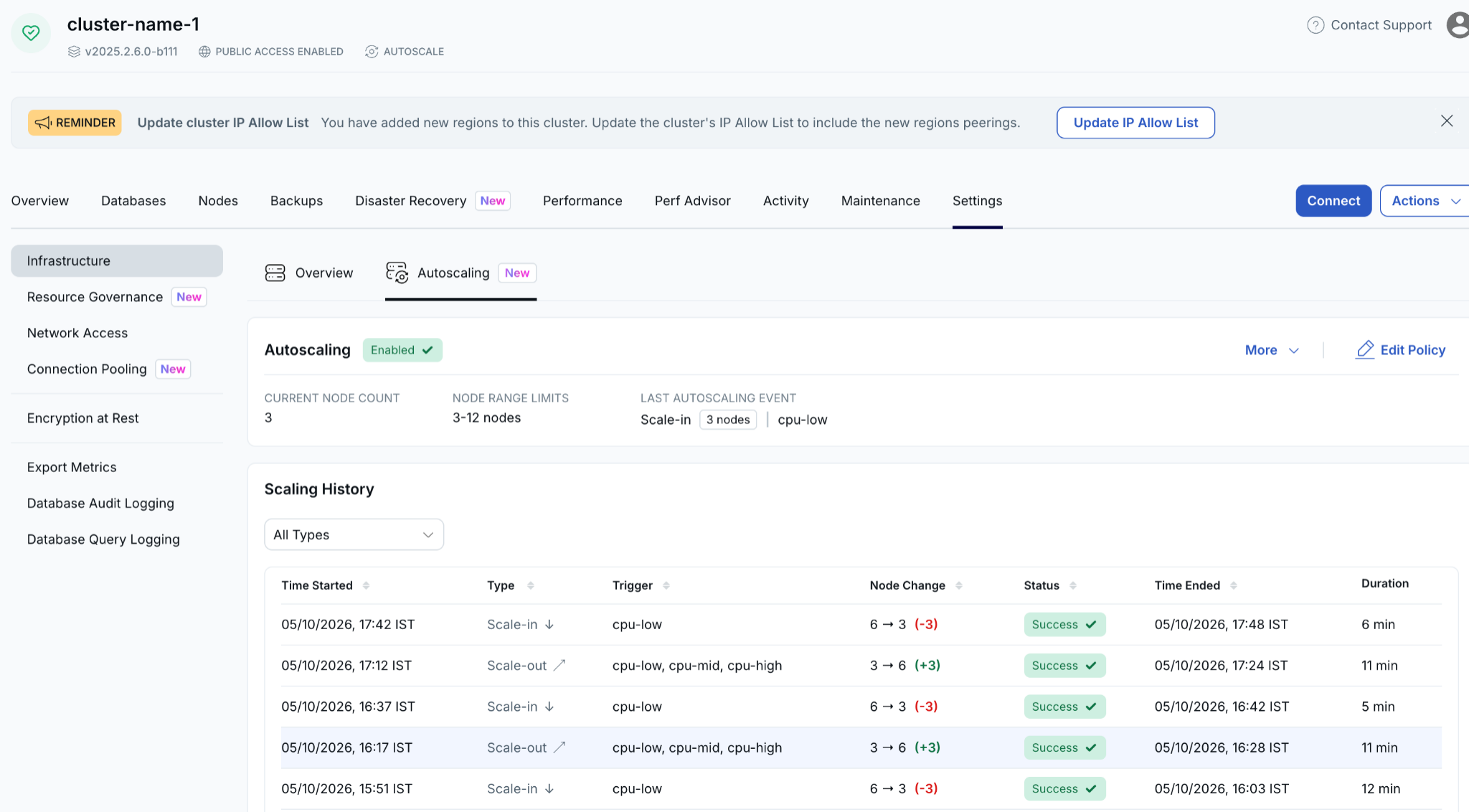
The tab shows:
- Whether autoscaling is enabled.
- Current node count.
- Node range limits (the minimum and maximum).
- Last autoscaling event, including the type, the number of nodes, and the rule that triggered it.
- Scaling history.
Scaling history lists each operation:
| Column | Description |
|---|---|
| Time started | When the operation started. |
| Type | Scale-out or scale-in. |
| Trigger | The rule or rules that caused the change. |
| Node change | The node count before and after the operation. |
| Status | Whether the operation succeeded. |
| Time ended | When the operation finished. |
| Duration | How long the operation took. |
Use the type filter to show all events, or only scale-out or scale-in.
The trigger names the rule that fired. Node change shows the size before and after, and duration includes rebalancing. For example, if a scale-out rule set to CPU greater than 65% for 15 minutes fires on a 3-node cluster, autoscaling adds 3 nodes and the history shows a node change of 3 → 6 (+3).
The tab can also show why an expected operation didn't run, such as when the cluster is already at its maximum size, a cooldown is active, or maintenance is in progress.
Limitations
Autoscaling only scales horizontally.
Don't use autoscaling with incremental backups:
- Backups in progress block autoscaling changes.
- Scaling changes cause the next incremental backup to be effectively a full backup, increasing the size and impact of the backup.
If you use autoscaling, schedule daily full backups instead of incremental backups.
Autoscaling doesn't support:
- Vertical scaling
- Scheduled scaling
- Disk autoscaling
- Scaling based on queries per second
- Latency-based scaling
- Query-aware scaling
- Predictive or machine-learning-based scaling
- Automatic hotspot mitigation
- Budget-based scaling controls
- Multi-region clusters