Restore universe data
Using YugabyteDB Anywhere, you can restore from a backup to a target universe.
You can perform the following types of restore:
- Restore the full backup, or a specific increment if the backup is incremental.
- Restore to a point in time, if the backup was created with a PITR-enabled scheduled backup policy. You cannot restore to a time earlier than the most recent DDL change.
To rewind a database or keyspace in place, see Rewind to a point in time.
Restoring a backup using YBC
Backups from a stable track universe can only be restored to a higher version stable track YugabyteDB universe, and the same applies for preview track. Optionally, you can set a runtime flagyb.skip_version_checks, to skip all YugabyteDB and YugabyteDB Anywhere version checks during restores. For more information, contact Yugabyte Support.
Prerequisites
-
The target universe must have enough nodes to accommodate the restore.
-
If the source universe is encrypted, the KMS configuration that was used to encrypt the universe. See Back up and restore data from an encrypted at rest universe.
-
If the source backup has tablespaces, to restore the tablespaces the target universe must have a matching topology; that is, the zones and regions in the target must be the same as the zones and regions in the source.
If the topology of the target universe does not match, none of the tablespaces are preserved and all their data is written to the primary region. After the restore, you will have to re-add all the tablespaces. For more information on specifying data placement for tables and indexes, refer to Tablespaces.
-
If you are restoring from a Network File System (NFS) storage configuration, the entire backup must be readable by the
yugabyteuser. Ifyugabytedoes not have read access, it is possible for restores to fail with a "file does not exist" error message. -
If a universe that spans multiple regions is backed up to NFS using a different volume for each region, all the NFS volumes must be synced to contain the full backup. Each node will require access to the full backup.
Tablespaces are an exception. A node doesn't require access to backed up tablets if they are pinned to another region using a tablespace.
Restore from backup
To access backups from a specific universe, navigate to the universe and choose Backups > Backups.
To access all backups for all universes, navigate to Backups.
To restore YugabyteDB universe data from a backup, do the following:
-
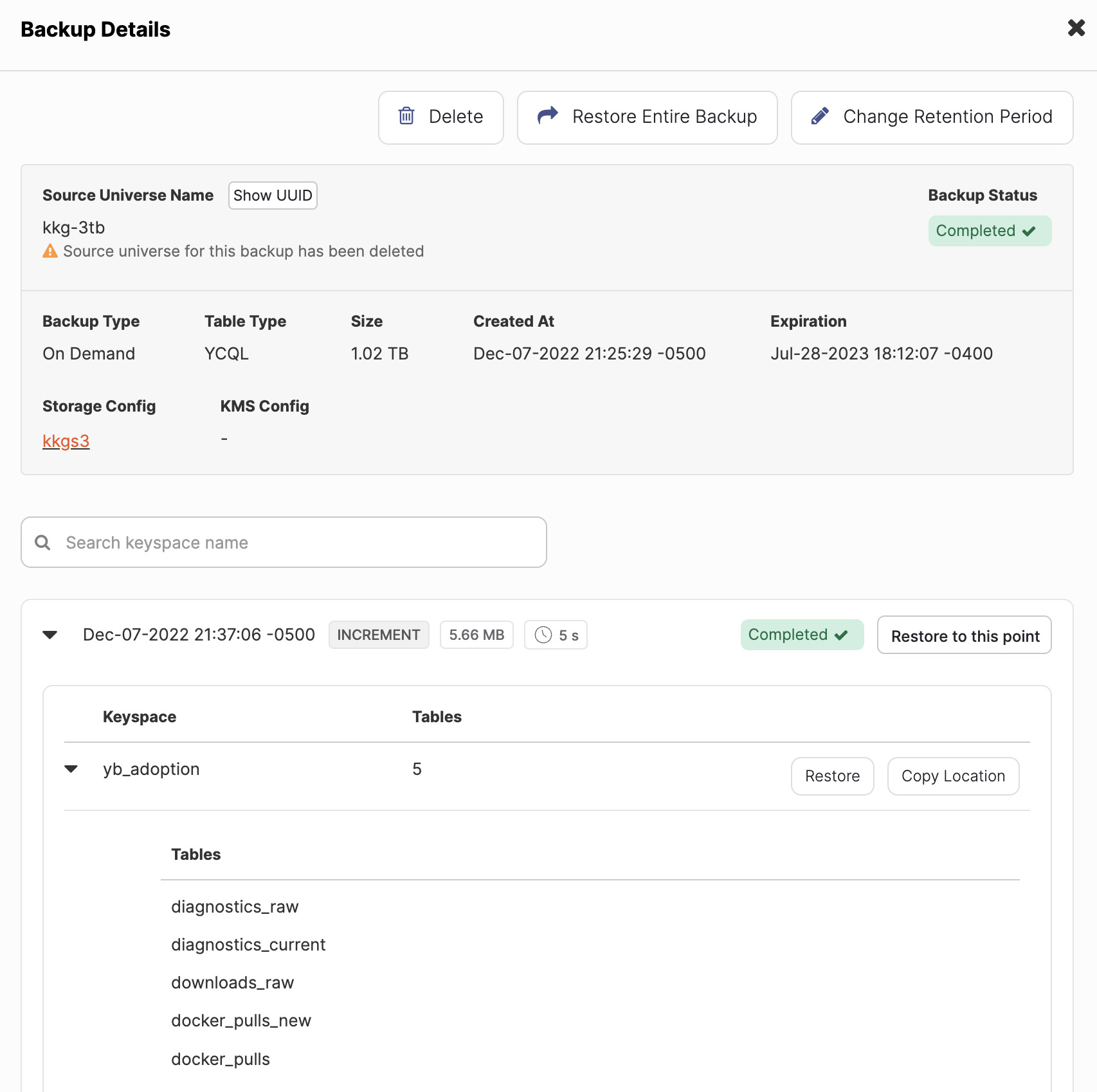
In the Backups list, select the backup to restore to display the Backup Details.
-
Choose the scope for the restore:
- Click Restore Entire Backup to restore from the selected backup (the latest in an incremental chain).
- If the backup includes incremental backups, click Restore to this point for the increment at which you want to restore.
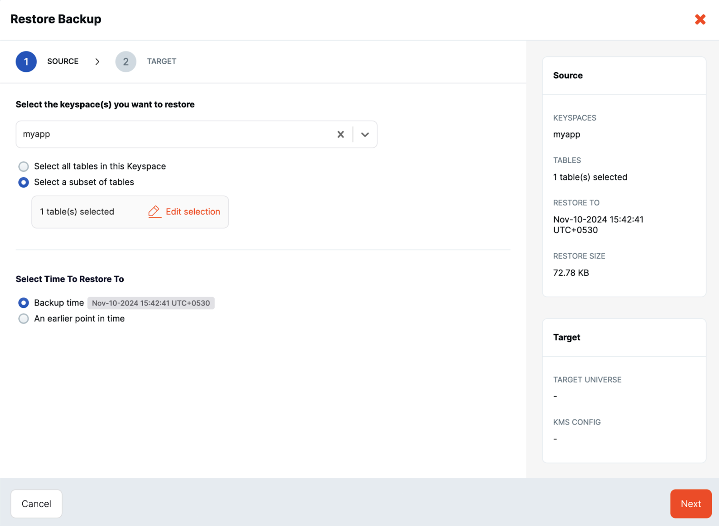
This displays the Restore Backup dialog.
-
Select the Keyspaces/Databases you want to restore. You can restore all databases/keyspaces, or a single database/keyspace.
Note that the Creation time shown in the dialog indicates the backup job start time, not the time that the particular database was actually snapshotted and backed up. When multiple databases are included in a backup job, each database is snapshotted and backed up in serial order; thus, each individual database's actual snapshot and backup time is not the same as the backup job start time.
-
If you are restoring a single YCQL keyspace, you can choose the tables in the keyspace you want to restore. (For instructions on restoring a single table in YSQL, refer to Restore a single table in YSQL.)
-
If the backup is configured for point-in-time recovery, you can restore to the backup time, or to any earlier point in time.
Select the An earlier point in time option to show the available restore window (start and end times) for the restoration.
Note that you cannot restore to a point in time earlier than the most recent DDL change.
-
If the backup includes roles, choose the Restore roles and grants option to restore roles.
Note that if the target universe already has matching roles, those roles are not overwritten.
-
When finished, click Next.
-
Select the Target Universe where you want to restore the backup. You also have the option to rename the keyspaces/databases.
If you are restoring a backup to a universe with an existing database of the same name, you must rename the database.
-
If you are restoring data from a universe that has tablespaces, select the Restore tablespaces and data to their respective regions option.
To restore tablespaces, the target universe must have a topology that matches the source.
You can restore without tablespaces, in which case none of the tablespaces are preserved and all their data is written to the primary region.
-
If you are restoring data from a universe that has, or previously had, encryption at rest enabled, select the KMS configuration to use so that the master keys referenced in the metadata file can be retrieved.
If the universe was previously encrypted at rest, but is not currently, then the retrieved keys assure that any existing files can be decrypted. The retrieved keys are used to build and augment the universe key registry on the restored universe with the required master keys. The universe data files are restored normally afterwards.
-
If you are renaming keyspaces/databases, click Next and enter the new names.
-
Click Restore when you are done.
The restore begins immediately. When finished, a completed Restore Backup task appears under Tasks > Task History.
To confirm that the restore succeeded, select the Tables tab to compare the original table with the table to which you restored.
To view the details of a restored database, navigate to Universes > your universe > Backups > Restore History, or Backups > Restore History.
Advanced restore procedure
In addition to the basic restore, an advanced restore option is available for the following circumstances:
- you have more than one YugabyteDB Anywhere installation and want to restore a database or keyspace from a different YugabyteDB Anywhere installation to the current universe.
- you want to restore a backup that was moved to a different location (for example, for long-term storage) and is no longer being managed by YugabyteDB Anywhere; that is, is no longer listed in the Backups list.
For information regarding components of a backup, refer to Access backups in storage.
Prerequisites
To perform an advanced restore, you need the following.
Storage configuration
A matching storage configuration in the target YugabyteDB Anywhere installation with credentials to access the storage where the backup is located.
If you are restoring from a backup that was moved to another location, copy the backup to a location with a corresponding storage configuration in YugabyteDB Anywhere.
Backup location
The backup location of the database or keyspace backup you want to restore.
The directory structure of the backup location matters. For a restore to succeed, YugabyteDB Anywhere requires the full path; that includes everything after the storage address. For NFS backups, YugabyteDB Anywhere automatically adds the yugabyte_backup directory; the backup location path you provide must also include the yugabyte_backup directory.
For example, for an S3 storage configuration with the storage address s3://mybucket/yb-backups/, a valid location is the following:
s3://mybucket/yb-backups/univ-<universe-name>-<universe-uuid>/<database>/ybc_backup-<uuid>/full/<timestamp>/multi-table-<keyspace>_<uuid>
Everything after the address (s3://mybucket/yb-backups) is required.
For an NFS storage configuration with the address /mnt/backup/, a valid location is the following:
/mnt/backup/yugabyte_backup/univ-<universe-name>-<universe-uuid>/<database>/ybc_backup-<uuid>/full/<timestamp>/multi-table-<keyspace>_<uuid>
Everything from the yugabyte_backup folder down is required.
If you moved or copied the backup to a new location, make sure the storage configuration has the correct storage address to match the location where the backup data now resides. YugabyteDB Anywhere automatically replaces the storage address of the backup location you provide with the storage address of the storage configuration you select.
For example, if you provide a storage configuration with an address of s3://newbucket/backups and the following backup location:
s3://mybucket/yb-backups/univ-<universe-name>-<universe-uuid>/<database>/ybc_backup-<uuid>/full/<timestamp>/multi-table-<keyspace>_<uuid>
YugabyteDB Anywhere will look in the following location for the backup:
s3://newbucket/backups/univ-<universe-name>-<universe-uuid>/<database>/ybc_backup-<uuid>/full/<timestamp>/multi-table-<keyspace>_<uuid>
For more information on the folder structure of YugabyteDB Anywhere backups, refer to Access backups in storage.
If the backup is still being managed by YugabyteDB Anywhere, you can obtain the address of the backup location, along with the storage configuration and database name, as follows:
-
On the YugabyteDB Anywhere installation where the backup is registered (which may differ from where you are performing the restore), navigate to Backups and click the backup (row) to display the Backup Details.
-
In the list of databases (YSQL) or keyspaces (YCQL), click Copy Location for the database or keyspace you want to restore. (If your backup includes incremental backups, to display the databases or keyspaces, click the down arrow for the increment at which you want to restore.)
-
Note the Storage Config used by the backup, along with the database or keyspace name.
KMS configuration
If the backup had encryption at rest enabled, you need a matching KMS configuration in the target YugabyteDB Anywhere installation so that the backup can be decrypted.
Perform an advanced restore
To perform an advanced restore, on the YugabyteDB Anywhere installation where you want to perform the advanced restore, do the following:
-
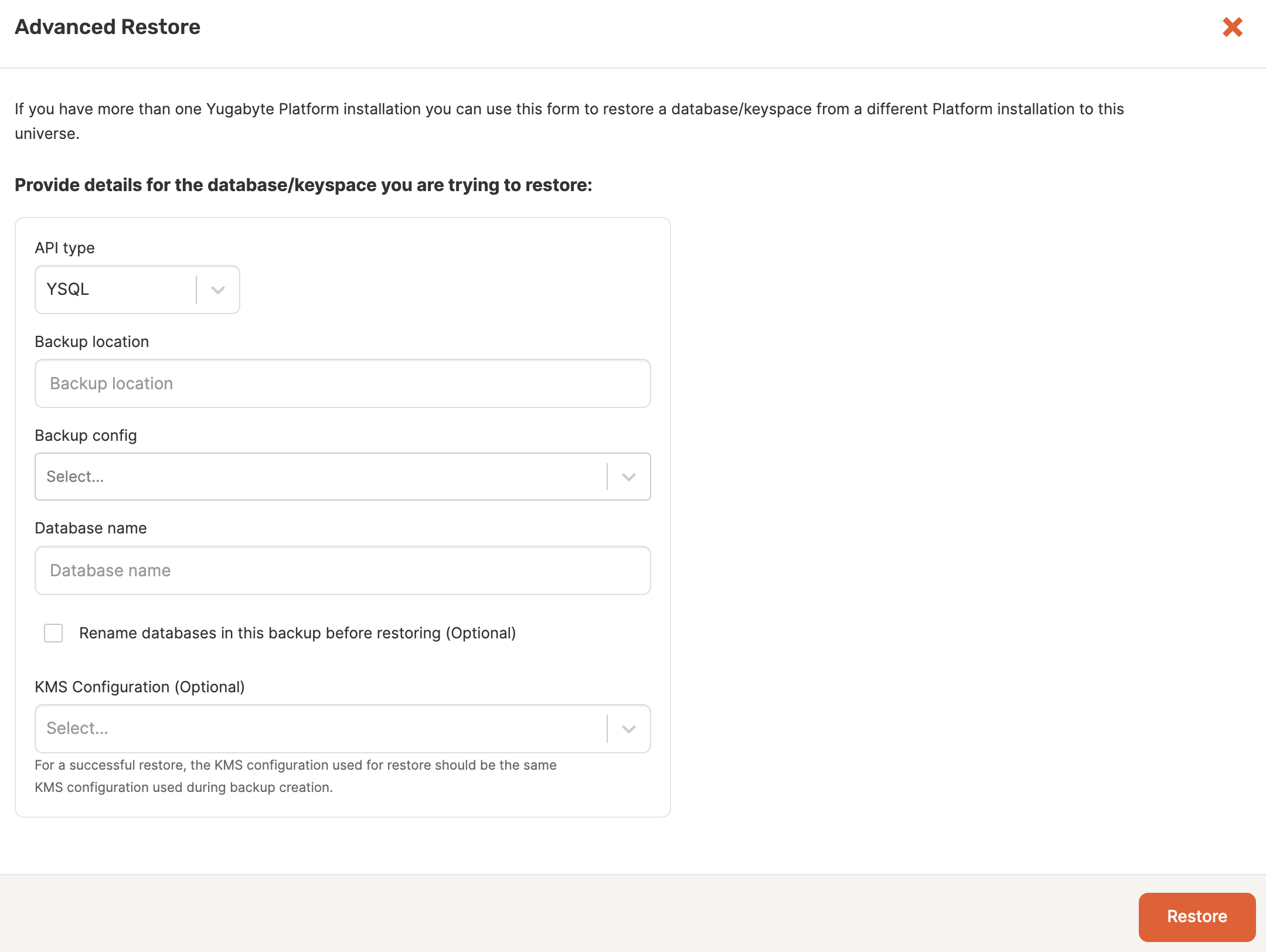
On the Backups tab of the universe to which you want to restore, click Advanced and choose Advanced Restore to display the Advanced Restore dialog.
-
Choose the type of API.
-
In the Backup location field, paste the backup location of the backup you are restoring.
For example:
s3://user_bucket/some/sub/folders/univ-myuniverse-a85b5b01-6e0b-4a24-b088-478dafff94e4/ybc_backup-92317948b8e444ba150616bf182a061/incremental/2024-01-04T12:11:03/multi-table-postgres_40522fc46c69404893392b7d92039b9e -
Select the Backup config that corresponds to the storage configuration that was used for the backup. The storage could be on Google Cloud, Amazon S3, Azure, or Network File System.
The storage configuration bucket takes precedence over the bucket specified in the backup location.
For example, if the storage configuration you select is for the following S3 bucket:
s3://test_bucket/testAnd the address provided in the Backup location has the following:
s3://user_bucket/test/univ-xyz...YugabyteDB Anywhere looks for the backup in
test_bucket/test, notuser_bucket/test. -
Specify the name of the database or keyspace from which you are performing a restore.
-
To rename databases (YSQL) or keyspaces (YCQL) in the backup before restoring, select the rename option.
-
If the backup involved universes that had encryption at rest enabled, then select the KMS configuration to use.
-
If you chose to rename databases/keyspaces, click Next, then enter new names for the databases/keyspaces that you want to rename.
-
Click Restore.