Rewind to point in time
Point-in-time recovery → across different products


To prevent data loss, YugabyteDB Anywhere supports Rewind to PIT. When enabled for a database or keyspace, YugabyteDB Anywhere takes a snapshot of the data once a day. Each snapshot maintains a continuous change history. You can then rewind the original database or keyspace to a specific point in time in a snapshot. Intervening writes are discarded. The rewind is done in place on the current database or keyspace.
Rewind is particularly applicable to the following:
- DDL errors, such as an accidental table removal.
- DML errors, such as execution of an incorrect update statement against one of the tables.
You can change the retention period for snapshots. The default is seven days, which gives you a rolling history of seven snapshots (one a day), with the oldest snapshot being deleted automatically as the most recent one is added.
For restoring from a backup to a point in time, on the original or an alternate universe, see Restore from backup.
For more information on PITR in YugabyteDB, refer to Point-in-time recovery.
Caveats and limitations
Enabling PITR impacts both disk consumption and performance. Keep in mind the following:
-
When you increase the number of stored snapshots (by increasing the retention period of the snapshots), you also increase the amount of space required for the database. The amount of storage required also depends on the workload. When enabled, monitor your storage consumption alerts and add disk space or reduce the retention period if necessary.
-
If you notice an impact on performance, refer to Operational considerations for guidance about further tuning.
-
YugabyteDB Anywhere uses a fixed snapshot interval of 24 hours. YugabyteDB allows you to adjust the snapshot interval using the yb-admin utility; however, if you use yb-admin to make changes to the PITR configuration of a universe managed by YugabyteDB Anywhere (including creating schedules and snapshots), your changes are not reflected in YugabyteDB Anywhere.
Enable PITR for a database or keyspace
Before you can use Rewind, you must enable PITR for the database or keyspace. This creates a snapshot schedule for the database/keyspace.
To enable PITR, navigate to your universe and do the following:
-
Select Backups > Point-in-time Recovery.
This displays a list of the databases and keyspaces already enabled for PITR, if any.
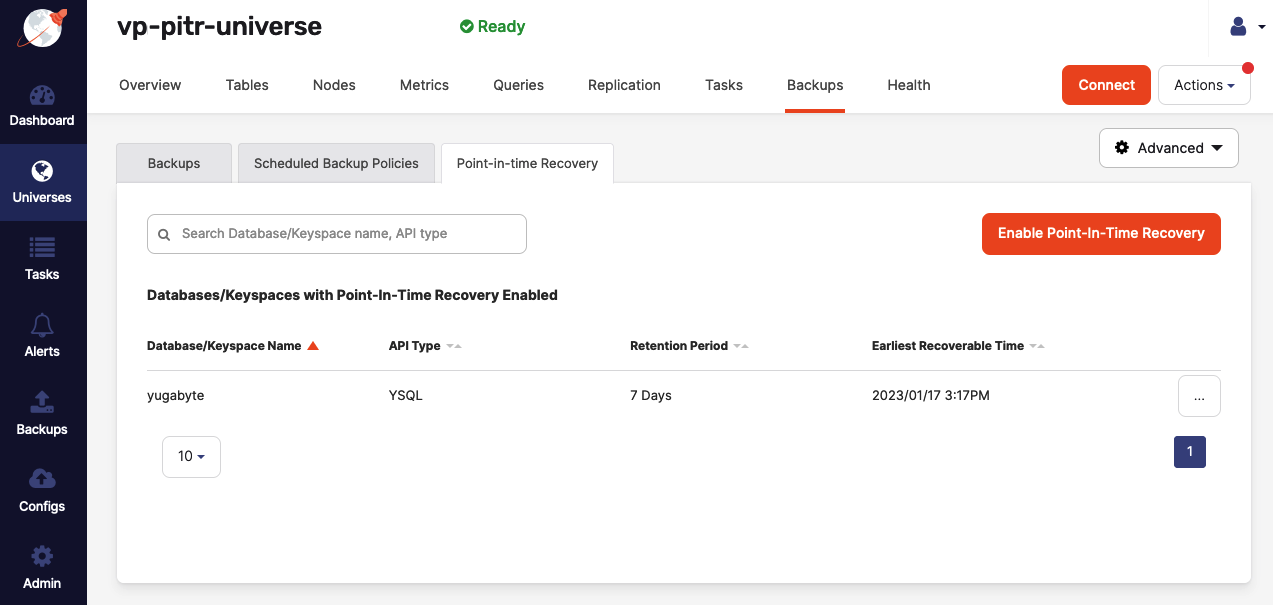
If there are currently no databases or keyspaces enabled for PITR, a message is displayed.
-
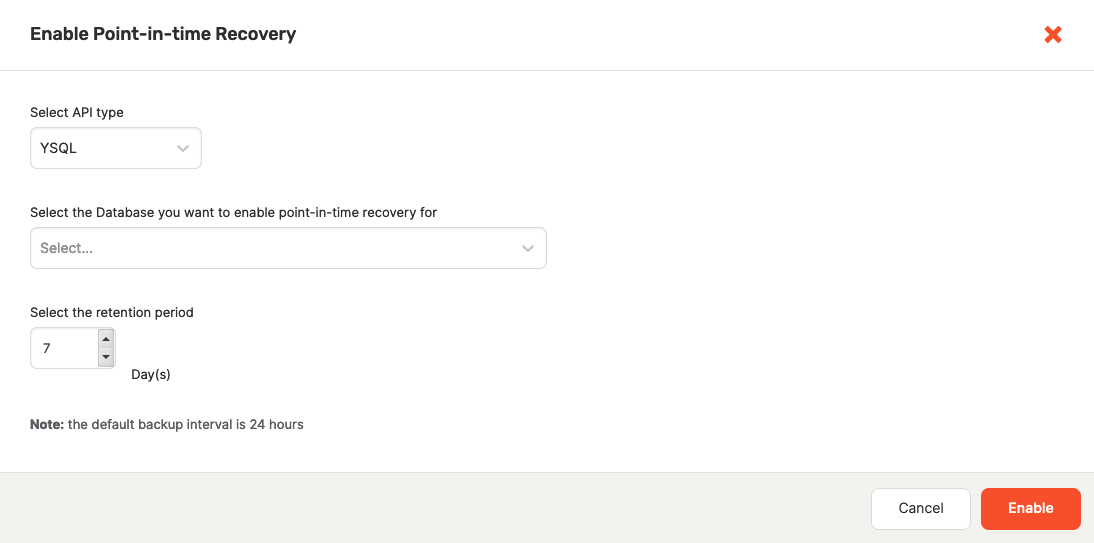
Click Enable Point-in-time Recovery to display the Enable Point-in-time Recovery dialog.
-
Select the API: YSQL or YCQL.
-
Select the database or keyspace for which to enable PITR.
-
Select the data snapshot retention period.
-
Click Enable.
The database or keyspace is now added to the Databases/Keyspaces with Point-In-Time Recovery Enabled list.
Rewind to a point in time
To rewind a database or keyspace to a specific point in time, navigate to your universe and do the following:
-
Select Backups > Point-in-time Recovery.
-
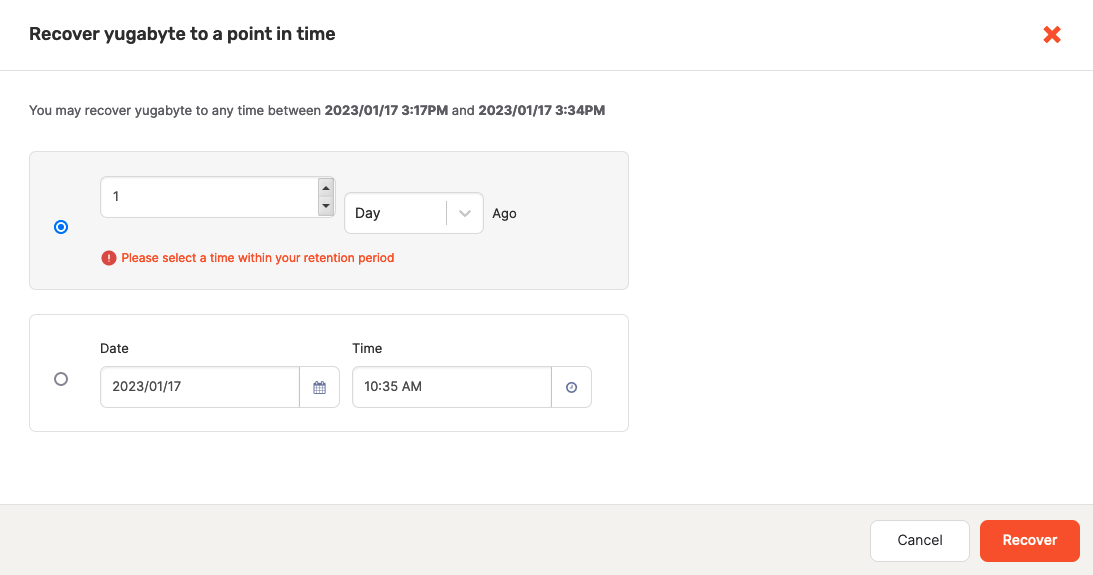
Find the database or keyspace you want to rewind, click the three dots (...) to display its actions, and select Recover to a Point in Time.
-
In the Recover dbname to a point in time dialog shown in the following illustration, specify the rewind time parameters that fall inside your predefined retention period:
-
Click Recover.
Disable a PITR configuration
To disable PITR for a database or keyspace, navigate to your universe and do the following:
-
Select Backups > Point-in-time Recovery.
-
Find the database or keyspace for which you want to disable PITR, click the three dots (...) to display its actions, and choose Disable Point-in-Time Recovery.
-
Click Disable Point-in-Time Recovery to confirm your intention to disable PITR for the database or keyspace.