Edit configuration flags
Adding and modifying configuration flags for your YB-Master and YB-TServer nodes in a YugabyteDB universe allows you to resolve issues, improve performance, and customize functionality. If your universe includes a read replica cluster, you can also add or modify configuration flags for the YB-TServer nodes in the read replica cluster.
For more information about the available configuration flags, see the following:
You can add configuration flags when you are creating a new universe. Refer to Create universes.
Enhanced Postgres Compatibility
If your cluster database version is v2024.2 or later, you can enable early access features for PostgreSQL compatibility.
Navigate to the universe and do the following:
- New UI Click Settings > Database and under Features click Edit > Edit Postgres Compatibility Settings.
- Classic UI Click Actions > More > Edit Postgres Compatibility.
For more information, refer to Enhanced PostgreSQL Compatibility Mode.
Flag settings
Enabling Enhanced Postgres Compatibility sets several flags, and overrides any settings you may have manually set for the same flags. YugabyteDB Anywhere will however continue to display the configuration flag setting that you customized.Connection Pooling
If your universe is running database v2024.2 or later, you can enable Built-in connection pooling.
Navigate to the universe and do the following:
-
New UI Click Settings > Database, and under Features click Edit and choose Edit Connection Pooling Settings.
Classic UI Click Actions > More > Connection Pooling.
This displays the Edit Connection Pooling dialog.
-
Enable or disable the Built-In Connection Pooling option.
-
Optionally, you can change the YSQL API port (used by applications to connect to a universe) and the Internal YSQL Port, which is the port that the YugabyteDB internal PostgreSQL process listens on when connection pooling is enabled. It defaults to 6433 and is only required for local binding, not external connectivity.
-
Click Apply Changes.
To customize other Connection Manager settings, use Edit configuration flags.
Do not set enable_ysql_conn_mgr, ysql_conn_mgr_port, or pgsql_proxy_bind_address manually when using YugabyteDB Anywhere to manage connection pooling for the universe.
For information on Connection Manager settings and defaults, refer to Set up YSQL Connection Manager.
Modify configuration flags
You can add and edit configuration flags by navigating to the universe and doing the following:
- New UI Click Settings > Database and under Advanced Config Flags click Add Configuration Flag (to add a new flag) or Edit.
- Classic UI Click Actions > Edit Flags.
To customize flags of the read replica of a universe that has a read replica cluster, deselect the Apply the same Flags to primary cluster and Read Replica option. (This option is only available for universes with a read replica.) This displays the Read Replica tab. Add and modify flags as you would for the primary cluster. Note that read replicas only have YB-TServers.
Depending on the flag, the universe may need to be restarted to apply the changes. Flags that require a restart display a Requires restart tag in the flag details; changes to these flags take effect only after the universe is restarted. You can apply changes as follows:
- Immediately using a rolling restart, or rolling restart in batches.
- Immediately using a concurrent restart.
- Immediately apply any changes that do not require a restart and wait until the next time the universe is restarted to apply the remaining changes.
Batched rolling restart
When possible, during a rolling restart YugabyteDB Anywhere will process multiple YB-TServer nodes in each availability zone simultaneously. YB-Master nodes are always updated one at a time.
Batched rolling restart requires a replication factor of 3 or more, and at least two nodes in an availability zone. If your universe supports a batched rolling restart, you can specify the maximum number of nodes to process as a batch.
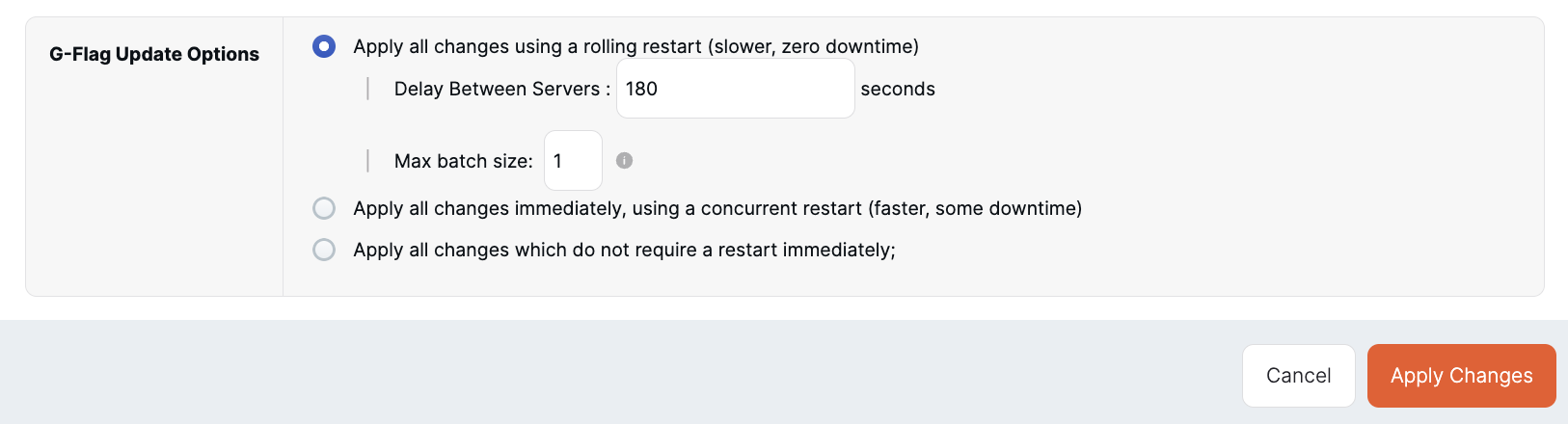
The batch size is also applied to read replica nodes. Before running the operation, YugabyteDB Anywhere synchronizes with the database to verify that the batch operation is safe, and falls back to processing a single node at a time if verification fails.
Add flags
Click Add Flags > Add to Master to open the Add to Master dialog, then select the flag you want to add to YB-Master and set its value, as per the following illustration:
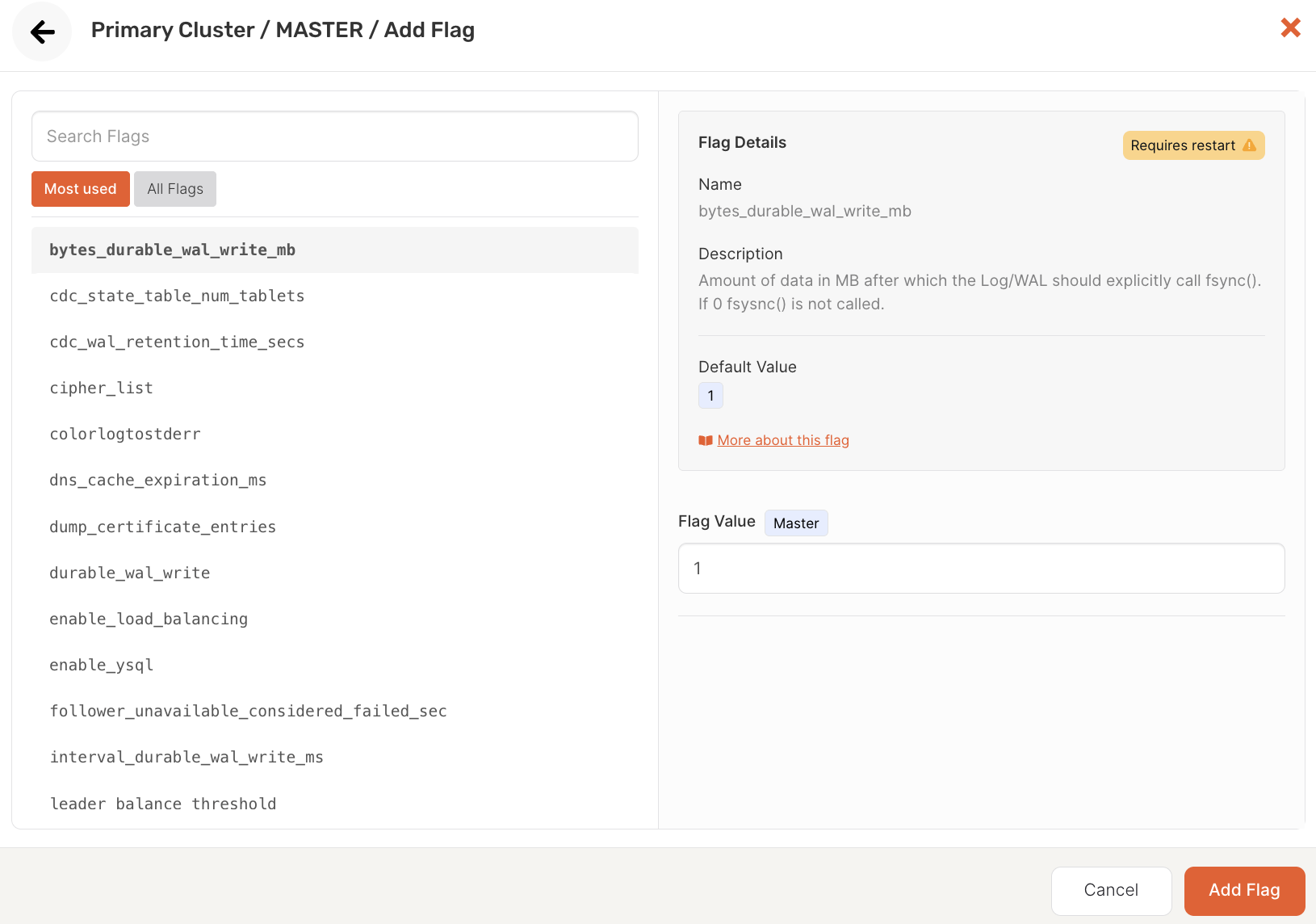
Click Add Flags > Add to T-Server to open the Add to T-Server dialog, then select the flag you want to add to YB-TServer and set its value.
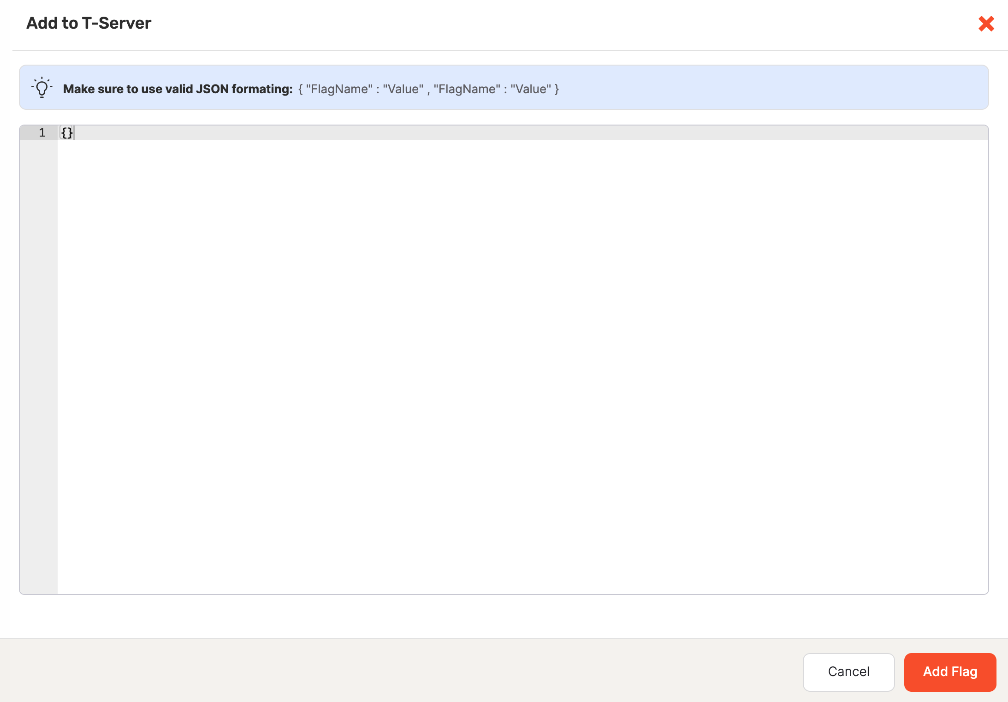
Use Add as JSON > Add to Master and Add as JSON > Add to T-Server to import flags in bulk. The flags must be defined as key-value pairs in a JSON format via the in the Add to T-Server or Add to Master dialog, as per the following illustration:
Edit flags
To edit a flag:
-
Find the flag you want to change in the FLAG NAME column.
-
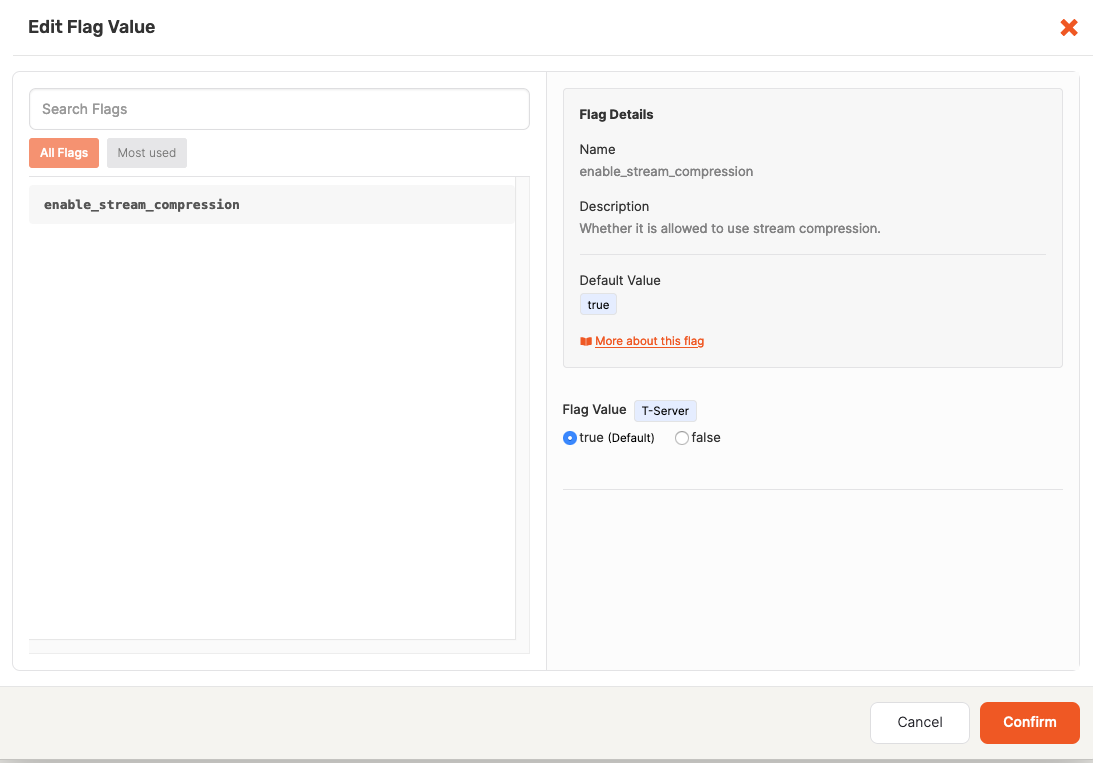
Click the Edit Flag icon for either MASTER VALUE or T-SERVER VALUE to open the Edit Flag Value dialog, as per the following illustration:
-
Change the value in the Flag Value field and then click Confirm.
To delete the flag's value, click the Remove Flag icon for either MASTER VALUE or T-SERVER VALUE or both.