Configure backup storage
Before you can back up universes, you need to configure a storage location for your backups.
Depending on your environment, you can save your YugabyteDB universe data to a variety of storage solutions.
Amazon S3
You can configure AWS S3 and S3-compatible storage as your backup target.
Not for OCI Object Storage
Do not use this Amazon S3 configuration for Oracle Cloud Infrastructure Object Storage. Create an Oracle Cloud storage configuration instead.Prerequisites
-
S3-compatible storage requires S3 path style access.
By default, the option to use S3 path style access is not available.
To enable S3 path style access in YugabyteDB Anywhere, set the Enable Path Access Style for Amazon S3 Global Runtime Configuration option (config key
yb.ui.feature_flags.enable_path_style_access) to true. Refer to Manage runtime configuration settings. Note that only a Super Admin user can modify Global configuration settings. -
S3 storage requires certificate verification.
If you are using custom self-signed or CA certificates, to connect to your S3 storage, you must add the certificates to the YugabyteDB Anywhere Trust Store. Refer to Add certificates to your trust store.
Certificate validation can't be disabled
If you set the Server certificate verification for S3 backup/restore (yb.certVerifyBackupRestore.is_enforced) Global Runtime Configuration option to False, the setting will be ignored.
Create an AWS backup configuration
To configure S3 storage, do the following:
-
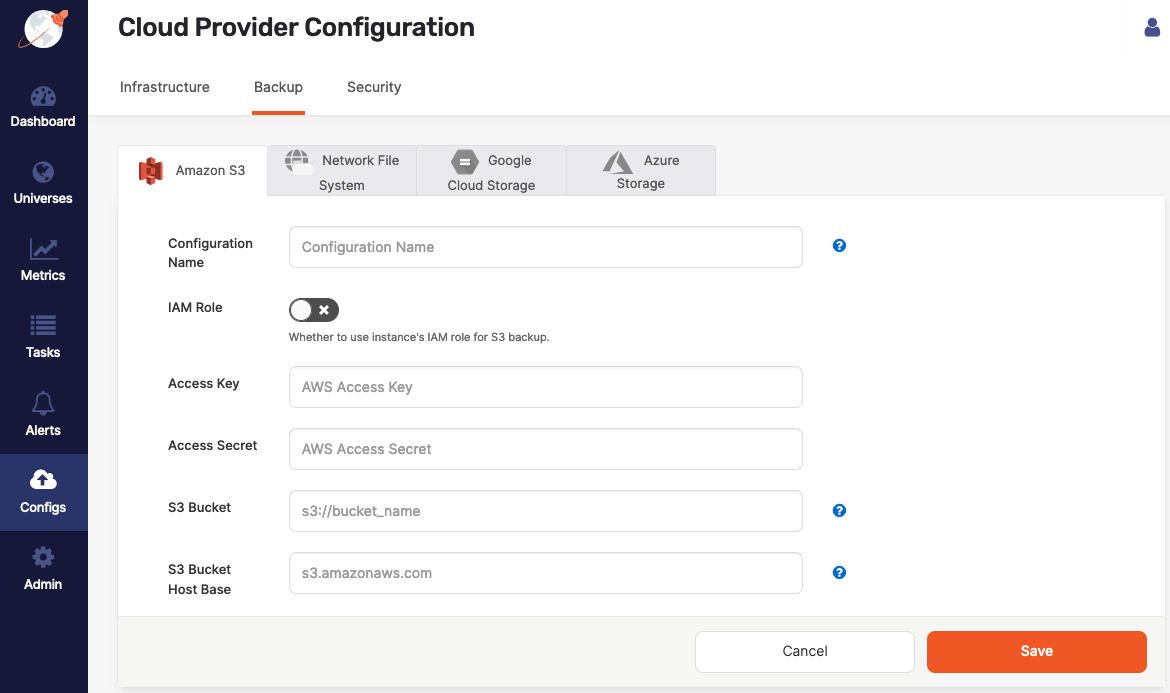
Navigate to Integrations > Backup > Amazon S3.
-
Click Create S3 Backup.
-
Use the Configuration Name field to provide a meaningful name for your storage configuration.
-
Enable IAM Role to use the YugabyteDB Anywhere instance's Identity Access Management (IAM) role or universe node IAM role for the S3 backup. See Required S3 IAM permissions.
To enable universe node IAM roles to access storage in S3, set the Use S3 IAM roles attached to DB node for Backup/Restore Universe Configuration option (config key
yb.backup.s3.use_db_nodes_iam_role_for_backup) to true. Refer to Manage runtime configuration settings. -
If IAM Role is disabled, enter values for the Access Key and Access Secret fields.
For information on AWS access keys, see Manage access keys for IAM users.
-
In the S3 Bucket field, enter the bucket name in the format
s3://bucket_name, orhttps://storage_vendor/s3-bucket-namefor S3-compatible storage. -
In the S3 Bucket Host Base field, enter the HTTP host header (endpoint URL) of the AWS S3 or S3-compatible storage, in the form
s3.amazonaws.comormy.storage.com. -
If you are using S3-compatible storage, set the S3 Path Style Access option to true. (The option is only available if the enablePathStyleAccess feature is enabled.)
-
Click Save.
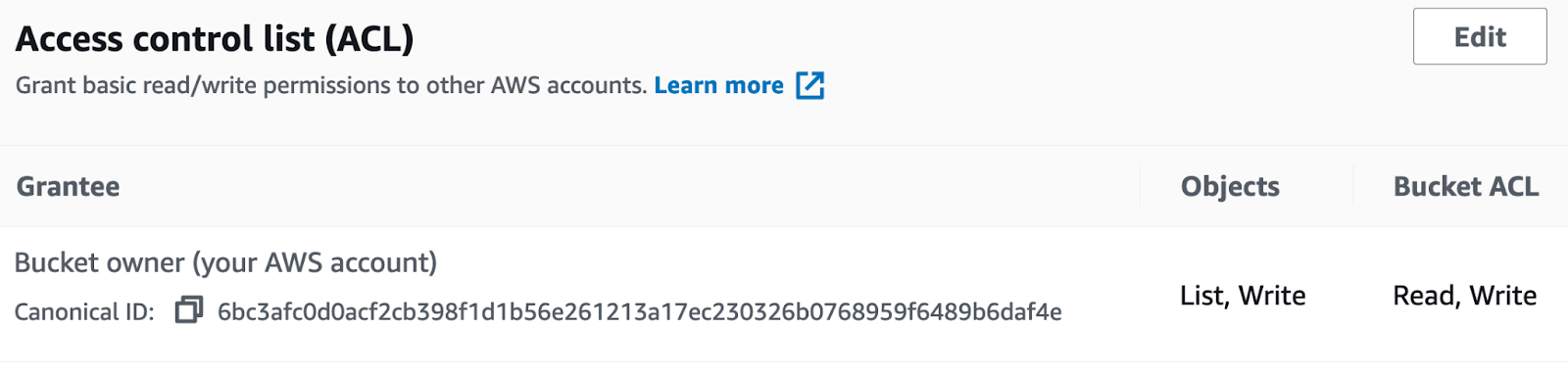
You can configure access control for the S3 bucket as follows:
-
Provide the required access control list (ACL), and then define List, Write permissions to access Objects, as well as Read, Write permissions for the bucket, as shown in the following illustration:
-
Create Bucket policy to enable access to the objects stored in the bucket.
Required S3 IAM permissions
The following S3 IAM permissions are required:
"s3:DeleteObject",
"s3:PutObject",
"s3:GetObject",
"s3:ListBucket",
"s3:ListAllMyBuckets",
"s3:GetBucketLocation"
Specify signing region
In some circumstances, you may need to additionally specify the signing region for the AWS backup configuration. For example:
- The S3 bucket uses a non-standard S3 endpoint, such as a private VPC endpoint, or S3-compatible storage; and
- YugabyteDB Anywhere is running in a region that is different than the region where the S3 bucket is located.
In these cases you can encounter errors such as 'Cannot list objects in backup location'.
Typically, the signing region is the AWS region where the S3 bucket is located (for example, us-east-1). Enter the AWS region in the Signing region field.
By default, the Signing region field is not available in the UI. To make it available, set the Enable Signing Region Global Runtime Configuration option (config key yb.ui.feature_flags.enable_signing_region) to true. Refer to Manage runtime configuration settings. You must be a Super Admin to set global runtime configuration flags.
Using a proxy
By default, Proxy Configuration for S3 storage is not available in the UI. To make it available (v2025.2.3.0 and later), set the Enable S3 Backup Proxy Global Runtime Configuration option (config key yb.ui.feature_flags.enable_s3_backup_proxy) to true. Refer to Manage runtime configuration settings. You must be a Super Admin to set global runtime configuration flags. (To make the feature available in versions prior to v2025.2.3.0, navigate to https://<my-yugabytedb-anywhere-ip>/features and enable the enableS3BackupProxy option.)
Configure a proxy for your S3 backup configuration by setting the following options under Proxy Configuration:
- Host: The full URL or IP address of the HTTP/HTTPS proxy server.
- Port: The port used by the HTTP/HTTPS proxy server.
- Username and Password: If your proxy requires authentication, enter the Username and Password.
Google Cloud Storage
You can configure Google Cloud Storage (GCS) as your backup target.
Required GCP service account permissions
To grant access to your bucket, create a GCP service account with IAM roles for cloud storage with the following permissions:
roles/storage.admin
The credentials for this account (in JSON format) are used when creating the backup storage configuration. For information on how to obtain GCS credentials, see Cloud Storage authentication.
You can configure access control for the GCS bucket as follows:
- Provide the required access control list (ACL) and set it as either uniform or fine-grained (for object-level access).
- Add permissions, such as roles and members.
Create a GCS backup configuration
To create a GCP backup configuration, do the following:
-
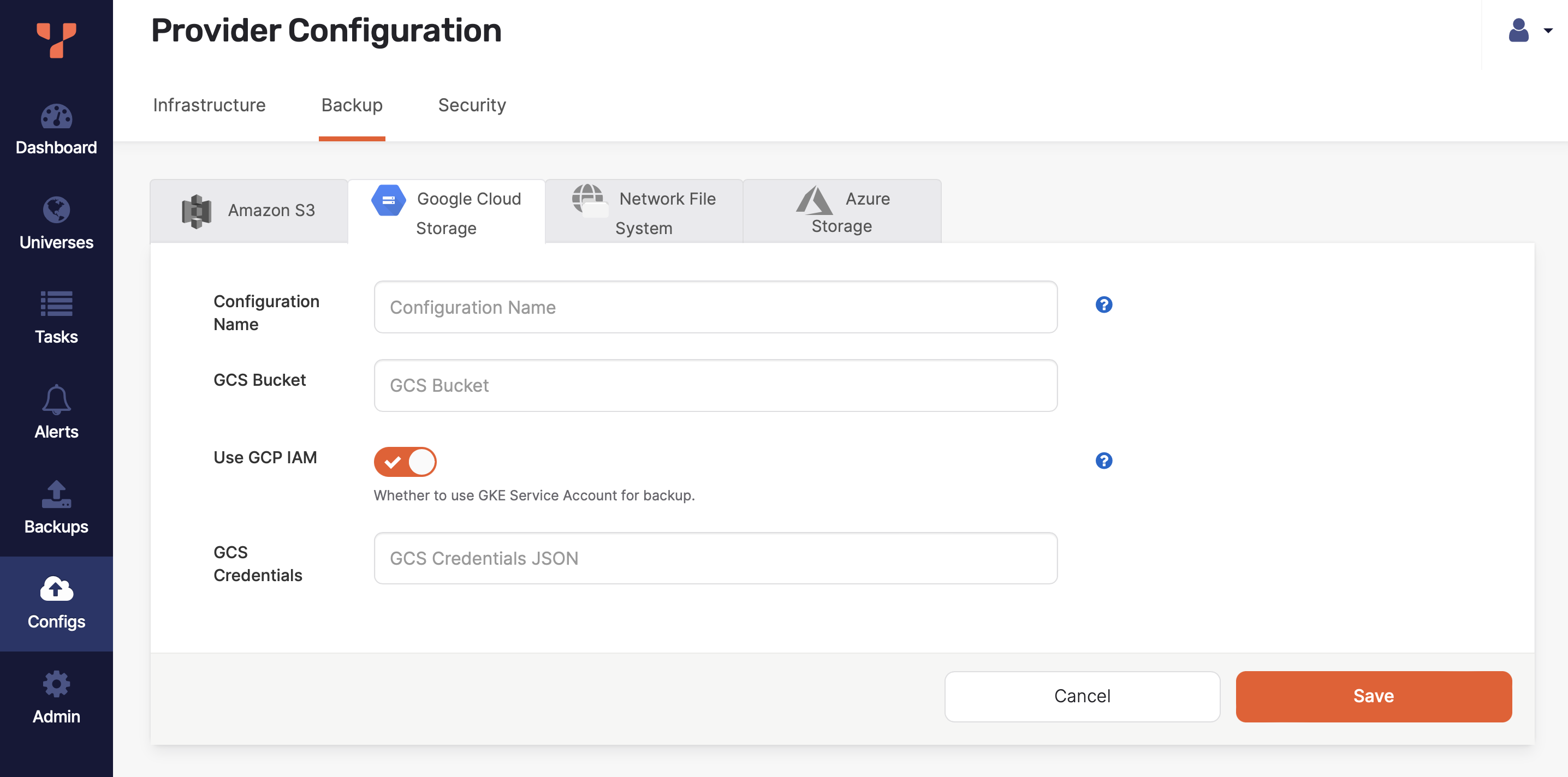
Navigate to Integrations > Backup > Google Cloud Storage.
-
Click Create GCS Backup.
-
Use the Configuration Name field to provide a meaningful name for your storage configuration.
-
Enter the URI of your GCS bucket in the GCS Bucket field. For example,
gs://gcp-bucket/test_backups. -
Select Use GCP IAM to use the YugabyteDB Anywhere instance's Identity Access Management (IAM) role for the GCS backup.
-
If Use GCP IAM is disabled, enter the credentials for your account in JSON format in the GCS Credentials field.
-
Click Save.
Azure Storage
You can configure Azure as your backup target.
Prerequisites
- Azure storage account.
- Blob container.
- SAS Token or Managed identity (IAM).
Create an Azure storage configuration
In YugabyteDB Anywhere:
-
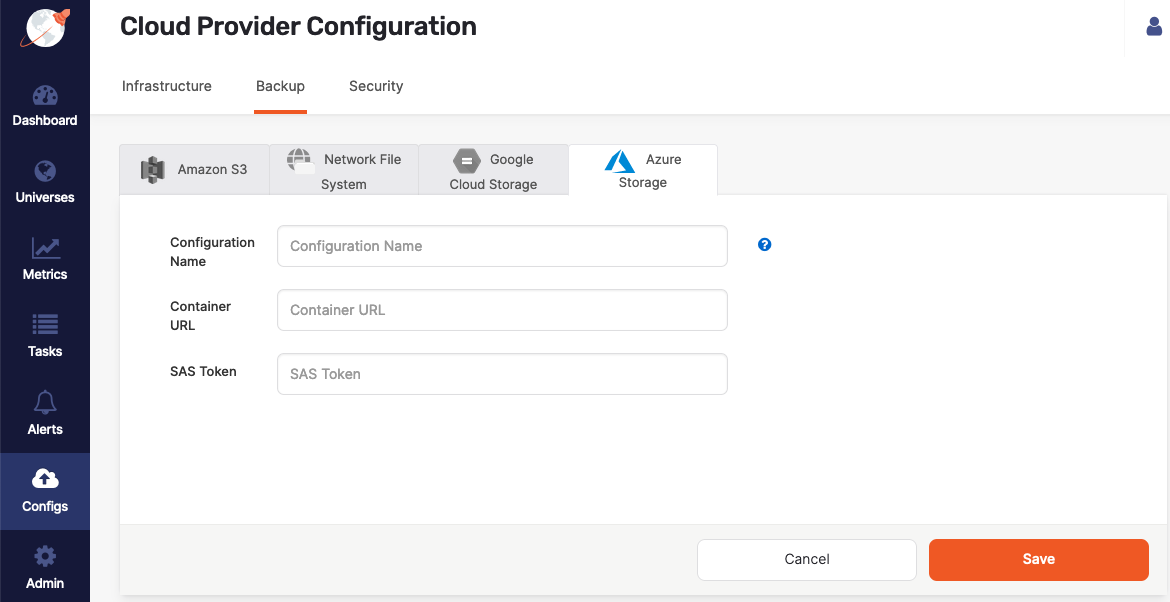
Navigate to Integrations > Backup > Azure Storage.
-
Click Create AZ Backup.
-
Use the Configuration Name field to provide a meaningful name for your storage configuration.
-
Enter the Container URL of the container you created. You can obtain the container URL in Azure by navigating to Container > Properties.
-
Provide the SAS Token you generated. You can copy the SAS Token directly from Shared access signature page in Azure.
-
Click Save.
Azure Managed Identity authentication
EA YugabyteDB Anywhere supports Azure Managed Identity (IAM) authentication for backup storage configurations, providing an alternative to SAS tokens. (Available in v2025.2.1.0 and later.)
Note that this feature is currently supported only for VM-based universes and via API.
When Azure IAM is enabled (via the parameter USE_AZURE_IAM set using the API):
- YugabyteDB Anywhere stores the IAM-based Azure storage configuration and validates it using the identity of the YugabyteDB Anywhere host VM or Service Principal.
- During backup and restore, YB Controller on each database node authenticates to Azure using the node's Managed Identity or Service Principal, and then performs blob operations against the configured container.
- SAS tokens are not required for authentication.
Prerequisites
Before configuring Azure IAM authentication, ensure the following:
-
YugabyteDB Anywhere VM. Ensure the YugabyteDB Anywhere VM has one of the following:
-
Managed Identity enabled. YugabyteDB Anywhere supports system- and user-assigned managed identity.
For more information, refer to Configure managed identities on Azure virtual machines in the Azure documentation.
-
App registration (Service Principal) configured.
Ensure the following environment variables are set on the YugabyteDB Anywhere VM:
AZURE_TENANT_ID=<tenant-id>
AZURE_CLIENT_ID=<client-id>
AZURE_CLIENT_SECRET=<client-secret>
For more information, refer to Register a Microsoft Entra app and create a service principal in the Azure documentation.
-
-
Database nodes. Ensure your database nodes are hosted on Azure VMs with one of the following:
-
Managed Identity enabled.
For each database node VM, enable system- or user-assigned managed identity.
This is the recommended approach as it requires no additional credentials.
-
App registration with Azure credentials configured in the environment.
-
Use the same Service Principal as created for the YugabyteDB Anywhere VM.
-
Set the following environment variables on each database node VM:
AZURE_TENANT_ID=<tenant-id>
AZURE_CLIENT_ID=<client-id>
AZURE_CLIENT_SECRET=<client-secret>
-
-
-
Azure IAM role and permissions. Assign the Storage Blob Data Contributor role (or a stricter role) on the target storage account/container to the Managed Identity or Service Principal.
For more information, refer to Assign Azure roles using the Azure portal in the Azure documentation.
Configure Azure storage with IAM using the API
Currently, you can only configure Azure storage with IAM using the YugabyteDB Anywhere API.
To create a storage configuration for a single Azure container with IAM:
curl -X POST \
  'https://<yba-ip>/api/v1/customers/<customer-uuid>/configs' \
  -H 'Content-Type: application/json' \
  -H 'X-AUTH-YW-API-TOKEN: <api-token>' \
  -d '{
    "configName": "azure-iam-backup",
    "type": "STORAGE",
    "name": "AZ",
    "data": {
      "BACKUP_LOCATION": "https://storageaccount.blob.core.windows.net/container",
      "USE_AZURE_IAM": true
    }
  }'
To create a storage configuration for multiple Azure regions with IAM:
curl -X POST \
  'https://<yba-ip>/api/v1/customers/<customer-uuid>/configs' \
  -H 'Content-Type: application/json' \
  -H 'X-AUTH-YW-API-TOKEN: <api-token>' \
  -d '{
    "configName": "azure-multi-region-iam",
    "type": "STORAGE",
    "name": "AZ",
    "data": {
      "BACKUP_LOCATION": "https://account1.blob.core.windows.net/container1",
      "USE_AZURE_IAM": true,
      "REGION_LOCATIONS": [
        {
          "REGION": "us-west1",
          "LOCATION": "https://account1.blob.core.windows.net/container1"
        },
        {
          "REGION": "us-east1",
          "LOCATION": "https://account2.blob.core.windows.net/container2"
        }
      ]
    }
  }'
Use the following configuration parameters:
| Parameter | Description |
|---|---|
configName |
A meaningful name for your storage configuration. |
type |
Must be "STORAGE". |
name |
Must be "AZ" for Azure. |
data.BACKUP_LOCATION |
The container URL in the format https://storageaccount.blob.core.windows.net/container. |
data.USE_AZURE_IAM |
Set to true to enable IAM authentication. When this is true, do not include SAS token credentials. |
data.REGION_LOCATIONS |
Optional. Array of region-specific locations for multi-region configurations. Each entry contains:
|
Mutually exclusive authentication
You cannot use both SAS token and Azure IAM authentication in the same configuration. WhenUSE_AZURE_IAM is true, do not include SAS token credentials in the request.
Oracle Cloud Infrastructure
You can configure OCI Object Storage as your backup target. YugabyteDB Anywhere supports two authentication modes; they are mutually exclusive:
- S3-compatible credentials, using a Customer Secret Key and the S3-compatible Object Storage endpoint. Path-style access is always enabled for this mode.
- OCI IAM, using instance principal. The YugabyteDB Anywhere host and all universe nodes must belong to a dynamic group with object-storage access.
Do not use an OCI API signing key (User OCID, fingerprint, and PEM) as static storage credentials. Those fields apply to the OCI provider and OCI KMS, not backup storage. Do not use an Amazon S3 storage configuration for OCI Object Storage.
Prerequisites
- An Object Storage bucket in the compartment you will use for backups.
- For S3-compatible mode, a Customer Secret Key (Access Key and Secret) for a user that can manage objects in the bucket. In the OCI Console, create the key under Identity > Users > Customer Secret Keys. See Customer Secret Keys in the OCI documentation.
- For IAM mode, instance principal on the YugabyteDB Anywhere host and on every universe node. Refer to Permissions to back up and restore.
The Object Storage namespace is required for IAM mode. When you use a native HTTPS backup location, the namespace must match the /n/<namespace>/ segment in the URL. In S3-compatible mode the namespace is optional, but if you set it, it must match that segment.
Create an OCI backup configuration
To configure OCI Object Storage, do the following:
-
Navigate to Integrations > Backup > Oracle Cloud.
-
Click Create OCI Backup.
-
Use the Configuration Name field to provide a meaningful name for your storage configuration.
-
In the Backup Location field, enter the bucket in one of the following forms:
- S3-compatible:
s3://<bucket>[/<path>] - Native HTTPS:
https://objectstorage.<region>.oraclecloud.com/n/<namespace>/b/<bucket>[/<path>]
Native HTTPS also works on government (
objectstorage.<region>.oraclegovcloud.com) and dedicated (objectstorage.<region>.oci.customer-oci.com) realms. Ans3://location with IAM still uses the public OC1 endpoint (objectstorage.<region>.oraclecloud.com).Do not use
/o/<object>paths. Do not use Pre-Authenticated Request (PAR) URLs; a location that contains/p/<token>/is parsed, but the token is ignored. - S3-compatible:
-
In the OCI Region field, enter the region of the bucket (for example,
us-sanjose-1). For S3-compatible credentials this is also used as the signing region. -
Enable Use OCI IAM to authenticate with instance principal instead of a Customer Secret Key.
-
If Use OCI IAM is enabled, enter the OCI Namespace.
-
If Use OCI IAM is disabled, enter values for the Access Key, Access Secret, and S3 Host Base fields.
The S3 Host Base is the S3-compatible endpoint, in the form
<namespace>.compat.objectstorage.<region>.oraclecloud.com. Path-style access is required and is applied automatically for OCI. -
Click Save.
Multi-region backup configuration (API)
Currently, you can only configure multi-region OCI storage using the YugabyteDB Anywhere API. Each REGION_LOCATIONS entry must include LOCATION and REGION. REGION is the universe placement region. For S3-compatible mode, each region location must also include OCI_S3_HOST_BASE.
To create a storage configuration for multiple OCI regions with IAM:
curl -X POST \
  'https://<yba-ip>/api/v1/customers/<customer-uuid>/configs' \
  -H 'Content-Type: application/json' \
  -H 'X-AUTH-YW-API-TOKEN: <api-token>' \
  -d '{
    "configName": "oci-multi-region-iam",
    "type": "STORAGE",
    "name": "OCI",
    "data": {
      "BACKUP_LOCATION": "https://objectstorage.us-sanjose-1.oraclecloud.com/n/mytenancy/b/backup-sjc",
      "OCI_REGION": "us-sanjose-1",
      "OCI_NAMESPACE": "mytenancy",
      "USE_OCI_IAM": true,
      "REGION_LOCATIONS": [
        {
          "REGION": "us-sanjose-1",
          "LOCATION": "https://objectstorage.us-sanjose-1.oraclecloud.com/n/mytenancy/b/backup-sjc"
        },
        {
          "REGION": "us-ashburn-1",
          "LOCATION": "https://objectstorage.us-ashburn-1.oraclecloud.com/n/mytenancy/b/backup-iad"
        }
      ]
    }
  }'
To create a storage configuration for multiple OCI regions with S3-compatible credentials:
curl -X POST \
  'https://<yba-ip>/api/v1/customers/<customer-uuid>/configs' \
  -H 'Content-Type: application/json' \
  -H 'X-AUTH-YW-API-TOKEN: <api-token>' \
  -d '{
    "configName": "oci-multi-region-s3",
    "type": "STORAGE",
    "name": "OCI",
    "data": {
      "BACKUP_LOCATION": "s3://backup-sjc",
      "OCI_REGION": "us-sanjose-1",
      "OCI_S3_ACCESS_KEY_ID": "<access-key>",
      "OCI_S3_SECRET_ACCESS_KEY": "<secret-key>",
      "OCI_S3_HOST_BASE": "mytenancy.compat.objectstorage.us-sanjose-1.oraclecloud.com",
      "USE_OCI_IAM": false,
      "REGION_LOCATIONS": [
        {
          "REGION": "us-sanjose-1",
          "LOCATION": "s3://backup-sjc",
          "OCI_S3_HOST_BASE": "mytenancy.compat.objectstorage.us-sanjose-1.oraclecloud.com"
        },
        {
          "REGION": "us-ashburn-1",
          "LOCATION": "s3://backup-iad",
          "OCI_S3_HOST_BASE": "mytenancy.compat.objectstorage.us-ashburn-1.oraclecloud.com"
        }
      ]
    }
  }'
Use the following configuration parameters:
| Parameter | Description |
|---|---|
configName |
A meaningful name for your storage configuration. |
type |
Must be "STORAGE". |
name |
Must be "OCI". |
data.BACKUP_LOCATION |
The default bucket in s3://<bucket>[/<path>] or native HTTPS form. |
data.OCI_REGION |
Region of the default bucket (signing region for S3-compatible mode). |
data.USE_OCI_IAM |
Set to true for instance principal. When true, do not include Customer Secret Key fields. |
data.OCI_NAMESPACE |
Required when USE_OCI_IAM is true. |
data.OCI_S3_ACCESS_KEY_ID, data.OCI_S3_SECRET_ACCESS_KEY, data.OCI_S3_HOST_BASE |
Required when USE_OCI_IAM is false. |
data.REGION_LOCATIONS |
Optional. Array of region-specific locations. Each entry contains REGION (universe placement region) and LOCATION. For S3-compatible mode, each entry must also include OCI_S3_HOST_BASE. |
Mutually exclusive authentication
You cannot use both Customer Secret Keys and OCI IAM in the same configuration. WhenUSE_OCI_IAM is true, do not include OCI_S3_ACCESS_KEY_ID, OCI_S3_SECRET_ACCESS_KEY, or OCI_S3_HOST_BASE.
For more information on the S3-compatible API, see Amazon S3 Compatibility API in the OCI documentation.
Network File System
You can configure Network File System (NFS) as your backup target, as follows:
-
Navigate to Integrations > Backup > Network File System.
-
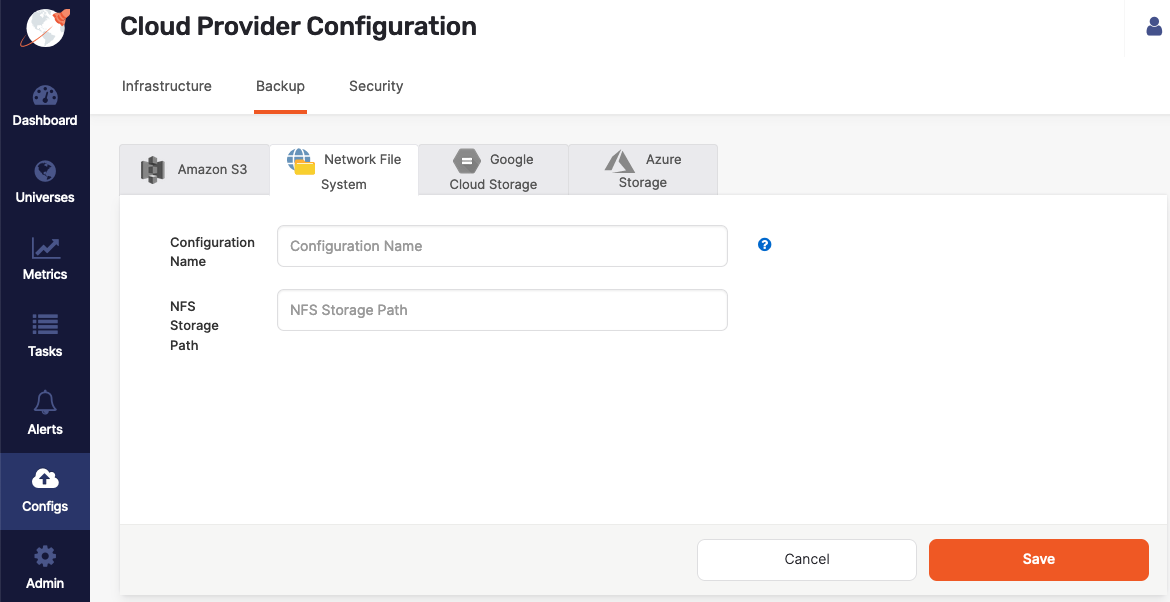
Click Create NFS Backup to access the configuration form shown in the following illustration:
-
Use the Configuration Name field to provide a meaningful name for your storage configuration.
-
Complete the NFS Storage Path field by entering
/backupor another directory that provides read, write, and access permissions to the SSH user of the YugabyteDB Anywhere instance. -
Click Save.
Prevent back up failure due to NFS unmount on cloud VM restart
To avoid potential backup and restore errors, add the NFS mount to/etc/fstab on the nodes of universes using the backup configuration. When a cloud VM is restarted, the NFS mount may get unmounted if its entry is not in /etc/fstab. This can lead to backup failures, and errors during backup or restore.
Local storage
If your YugabyteDB universe has one node, you can create a local directory on a YB-TServer to which to back up, as follows:
-
Navigate to Universes, select your universe, and then select Nodes.
-
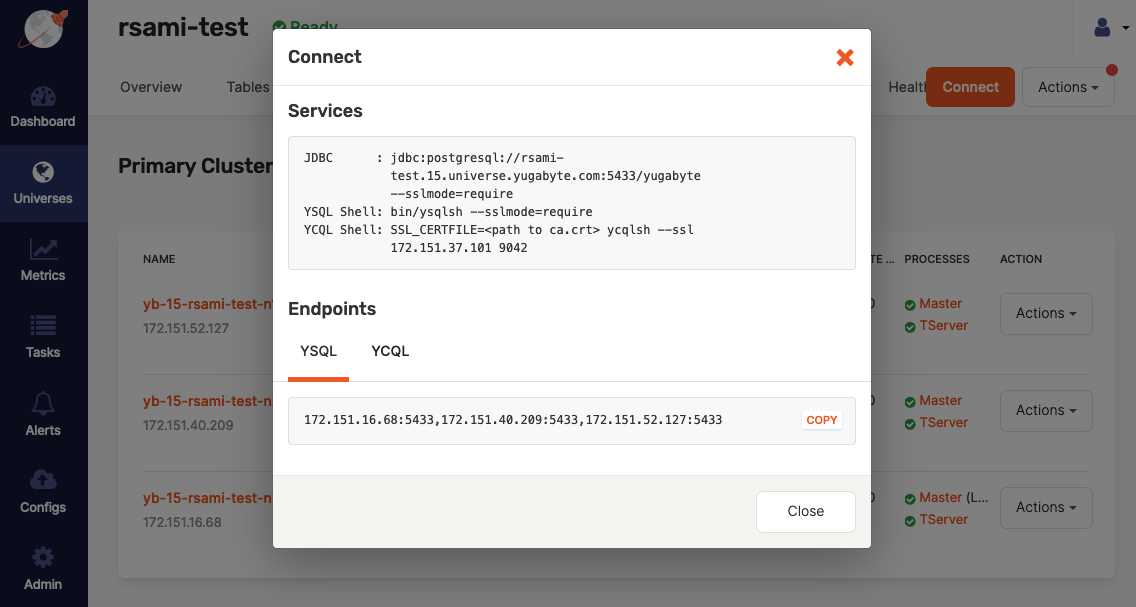
Click Connect.
-
Take note of the services and endpoints information displayed in the Connect dialog, as shown in the following illustration:
-
While connected using
ssh, create a directory/backupand then change the owner toyugabyte, as follows:sudo mkdir /backup; sudo chown yugabyte /backup
If there is more than one node, you should consider using a network file system mounted on each server.