OIDC authentication with JumpCloud
This section describes how to configure a YugabyteDB Anywhere (YBA) universe to use OIDC-based authentication for YugabyteDB YSQL and YCQL database access using JumpCloud as the example Identity Provider (IdP), the integration works with any OIDC-compliant provider.
In normal operation, after OIDC is configured in YBA, database users authenticate with JumpCloud, which issues a JSON Web Token (JWT). The JWT is a short-lived, signed token that proves the user's identity. Database users must then obtain the JWT (in one of two ways) and use it to log in to the database. One way is to obtain the JWT directly from YBA; this requires JumpCloud to be configured to send the JWT to YBA, and YBA to be configured to display it to users on their login screen. Alternatively, users can use a custom tool to obtain the JWT directly from JumpCloud. In either case, database users then supply this JWT as their database password when connecting directly to YugabyteDB.
Note that the yugabyte privileged user will continue to exist as a local database user even after OIDC-based authentication is enabled for a universe.
To set up OIDC authentication, complete the following steps:
- Configure your JumpCloud Identity provider: register YugabyteDB Anywhere as a client application in JumpCloud and configure the token claims.
- Configure OIDC in YugabyteDB Anywhere (Optional): if you want YBA to surface the JWT on the sign-in page, enable OIDC in YBA. Otherwise, you can fetch the JWT directly from JumpCloud using a tool of your choice.
- Configure a universe to use OIDC: set the authentication flags on your YugabyteDB universe for YSQL or YCQL access.
- Manage users and roles: create database roles that map to the claims in the JWT.
Configure your JumpCloud Identity provider
The JumpCloud IdP configuration includes application configuration (registering YugabyteDB Anywhere in the JumpCloud tenant) and configuring JumpCloud to send (redirect) tokens with the required claims to YugabyteDB Anywhere.
Before configuring, note the YugabyteDB Anywhere callback URI; you'll need to provide it as the redirect URI when registering your application in JumpCloud.
Configure an application in JumpCloud
To use JumpCloud for your IdP, do the following:
-
Sign in to JumpCloud using an administrator account.
-
Create an application.
- Under SSO Applications, click Add New Application.
- Select Custom Application, and make sure the integration supports "SSO with OIDC" on the next page.
- Under Manage Single Sign-On (SSO), select Configure SSO with OIDC, and click Next.
- Under Enter General Info, add the application name (for Display Label), Description, and logo (for User Portal Image), and select Show this application in User Portal.
- Click Configure Application.
-
Configure your application.
Under SSO > Endpoint Configuration, configure the following:
- Redirect URIs. Enter the OIDC callback URI. This is where the IdP redirects after authentication.
- Client Authentication Type. Select Client Secret Post.
- Login URL. Enter
https://<your-YugabyteDB-Anywhere-IP-address>/login.
Under Attribute Mapping, for Standard Scopes, select Email and Profile.
Click Activate when you are done.
You will be prompted in a pop up to save the Client ID and Client Secret. Save these in a secure location, you will need to provide these credentials in YugabyteDB Anywhere.
-
Configure Attributes and Identity Management as required.
-
Integrate the user in JumpCloud.
- Navigate to User Groups, select the user groups you want to access YugabyteDB Anywhere, and click Save when you are done.
To configure JumpCloud federated authentication in YugabyteDB Anywhere, you need the following application properties:
- Client ID and Client Secret of the application you created. These are the credentials you saved when you activated your application. The Client ID is also displayed on the SSO tab.
For more information, refer to the JumpCloud documentation.
Configure OIDC in YugabyteDB Anywhere (Optional)
You have two options to obtain your JWT from the IdP to connect to the database:
-
Via a tool of your choice: You can fetch the JWT directly from JumpCloud using any OAuth2-capable tool such as the JumpCloud CLI,
curl, or Postman, and supply it as the password when connecting to the database. No additional YBA configuration is required for this path. -
Via YugabyteDB Anywhere: YBA can display your JWT on the sign-in page after you authenticate with JumpCloud. To enable OIDC authentication in YugabyteDB Anywhere, do the following. You need to be signed in as a Super Admin and have your JumpCloud application client ID and client secret available.
Enable OIDC enhancements
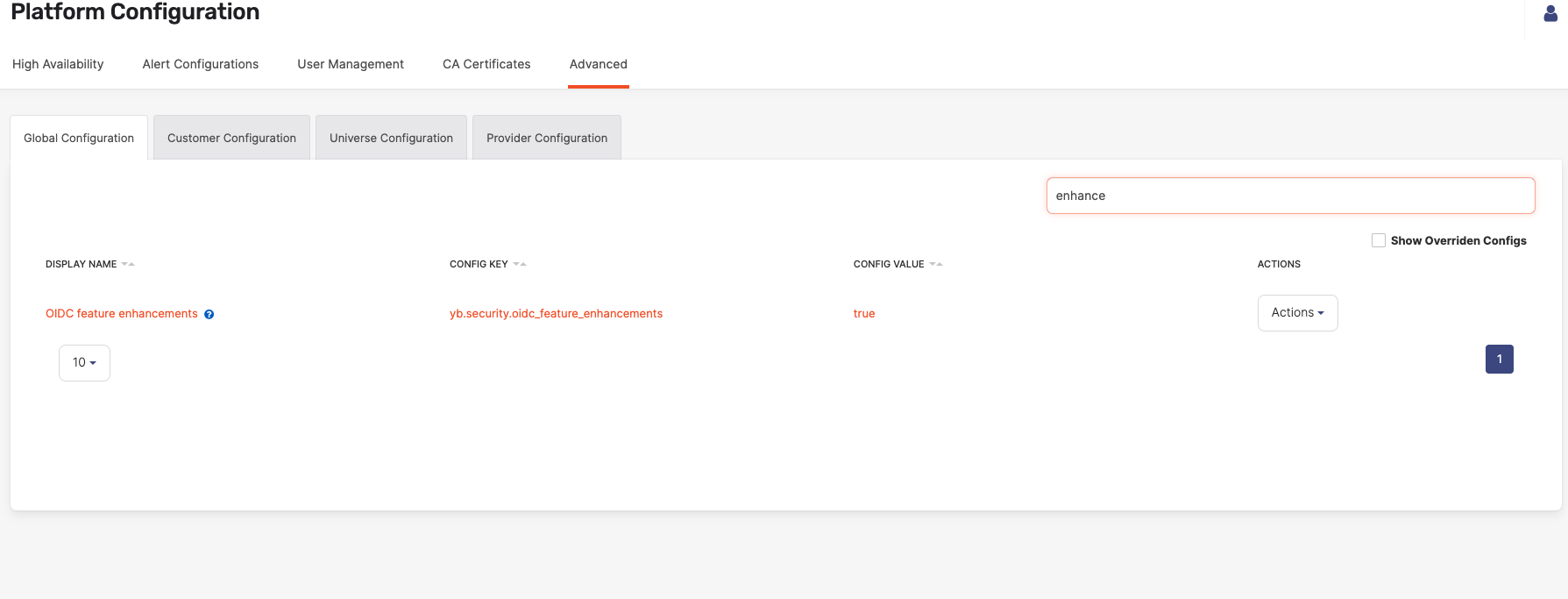
To enable some features of the OIDC functionality in Yugabyte Anywhere, you need to set the yb.security.oidc_feature_enhancements configuration flag to true as follows:
-
Navigate to Admin > Advanced > Global Configuration.
-
Search on OIDC to display the configuration setting and set it to true.
Enable OIDC authentication
To configure User authentication in YugabyteDB Anywhere, do the following:
-
Navigate to Admin > Access Management > User Authentication and select ODIC configuration.
-
Under OIDC configuration, configure the following:
- Client ID and Client Secret - enter the client ID and secret of the JumpCloud application you created.
- Discovery URL - enter
https://oauth.id.jumpcloud.com/.well-known/openid-configuration. - Scope - enter
openid email. If you are using the Refresh Token feature to allow the Jumpcloud server to return the refresh token (which can be used by YBA to refresh the login), enteropenid offline_access profile emailinstead. - Email attribute - enter your registered email.
- Refresh Token URL - if you have configured OIDC to use refresh tokens, in the Refresh Token URL field, enter the URL of the refresh token endpoint.
- Display JWT token on login - select this option to allow users to access their JWT from the YugabyteDB Anywhere sign in page. This allows a user to view and copy their JWT without signing in to YBA. (This option is only available if you enabled the
yb.security.oidc_feature_enhancementsconfiguration flag.)
-
Click Save.
You are redirected to sign in to your IdP to test the connection. After the test connection is successful, OIDC authentication is enabled.
Configure a universe to use OIDC
You enable OIDC for universes by setting authentication flags for YSQL or YCQL database access. For YSQL, the database uses PostgreSQL yb_hba.conf and yb_ident.conf files to translate authentication rules into database roles. For YCQL, you set YB-TServer flags such as ycql_jwt_conf and optional ycql_ident_conf_csv identity mapping rules.
To access a universe via OIDC, set the flags described in the following tabs for YSQL or YCQL.
For information on configuring flags in YugabyteDB Anywhere, refer to Edit configuration flags.
To access a universe via OIDC for YSQL, set the following flags on the universe:
- ysql_hba_conf_csv
- ysql_ident_conf_csv
When the flags are set, YugabyteDB configures the ysql_hba.conf and yb_ident.conf files on the database nodes and creates the files that hold the JWKS keys for token validation.
ysql_hba_conf_csv
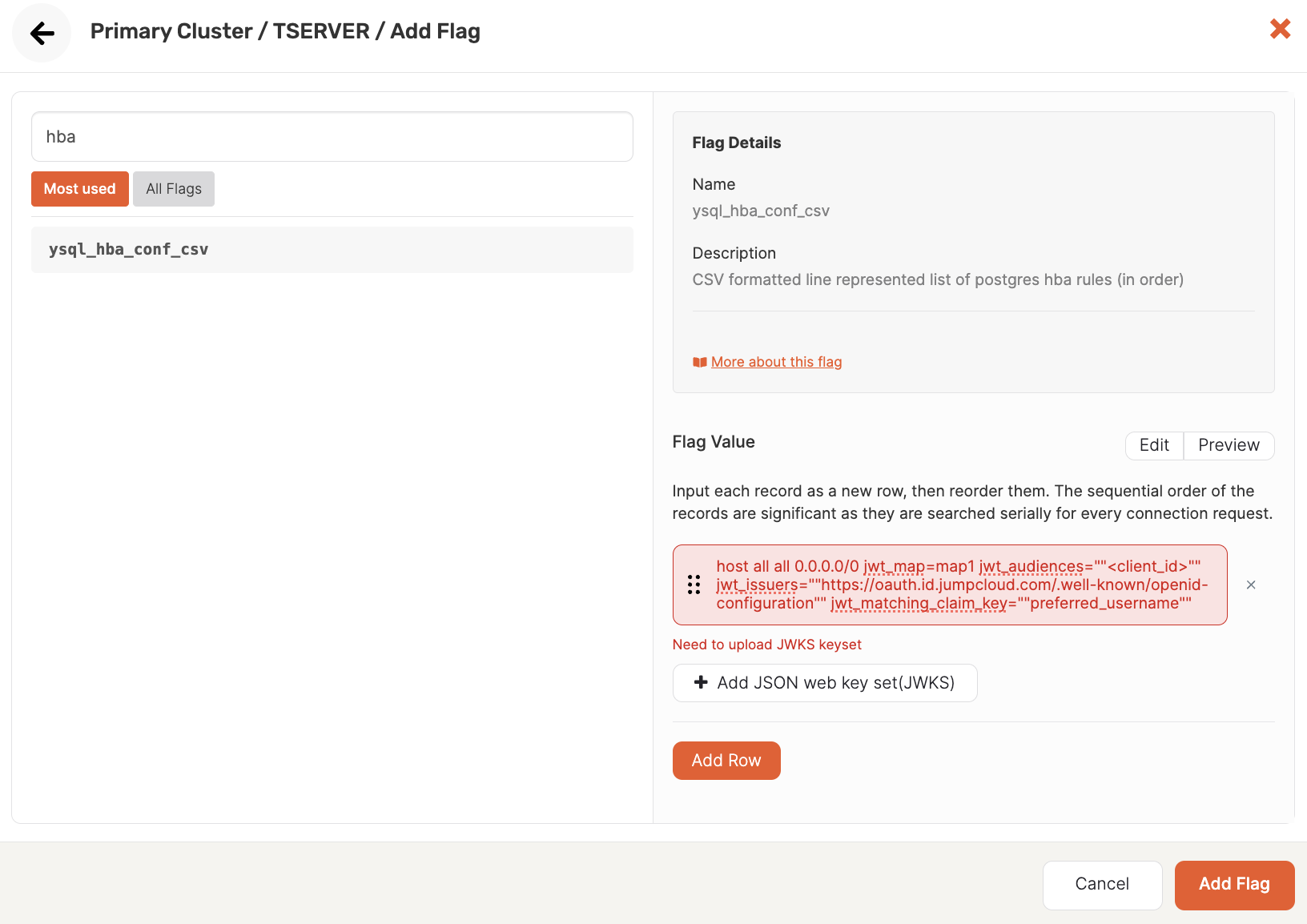
The ysql_hba_conf_csv flag must be set to support using JWTs for authentication. The parameters to include in the configuration file record are as follows:
map- the user-name map used to translate claim values to database roles. Optional if you aren't using the default Subject claim values.jwt_issuers- the first part of the discovery URL (https://oauth.id.jumpcloud.com/)jwt_audiences- the audience or target app for the token, which in this case is the client ID of the application you registered.jwt_matching_claim_key- the email attribute you set (for example,preferred_username). Optional if you aren't using the default Subject claim values.jwt_jwks_path- The JSON Web Key Set (JWKS) is a set of keys containing the public keys used to verify any JWT. These can be uploaded as entries in a single file. When configuring the flag in YugabyteDB Anywhere, click Add JSON web key set (JWKS) to upload the JWKS.
The following illustration shows an example of setting the ysql_hba_conf_csv flag in YugabyteDB Anywhere:
The following shows an example ysql_hba_conf_csv flag configuration for OIDC:
host all all 0.0.0.0/0 jwt map=map1 jwt_audiences=""<client_id>"" jwt_issuers=""https://oauth.id.jumpcloud.com/"" jwt_matching_claim_key=""preferred_username""
For more information on host authentication in YugabyteDB using ysql_hba_conf_csv, refer to Host-based authentication.
ysql_ident_conf_csv
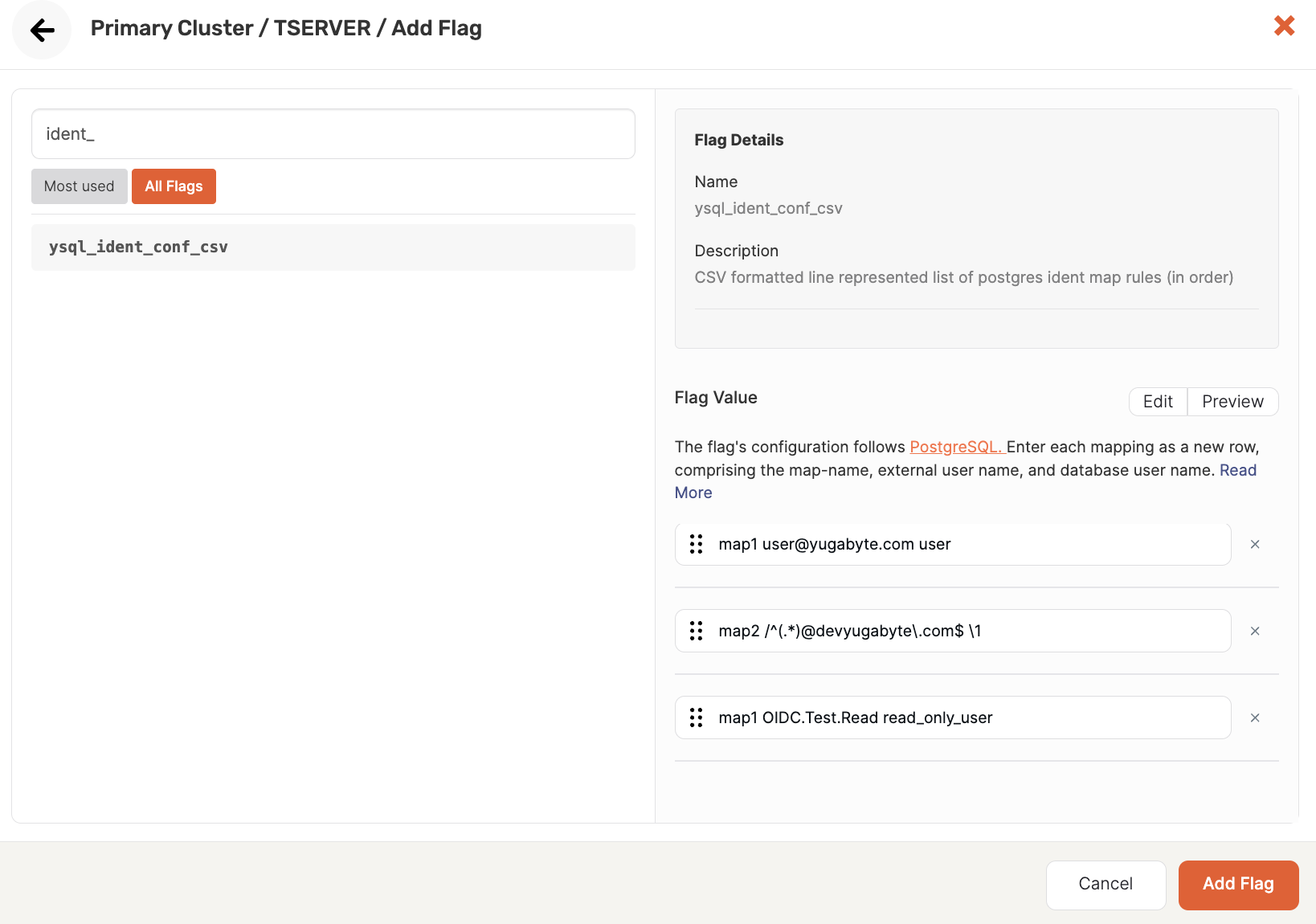
This flag is used to add translation regex rules that map token claim values to PostgreSQL roles. The flag settings are used as records in the yb_ident.conf file as user-name maps. This file is used identically to pg_ident.conf to map external identities to database users. For more information, refer to User name maps in the PostgreSQL documentation.
The following illustration shows an example flag configuration:
The following are examples of possible rules:
-
Map a single user
map1 user@yugabyte.com user -
Map multiple users
map2 /^(.*)@devyugabyte\.com$ \1 -
Map Roles <-> Users
map1 OIDC.Test.Read read_only_user
To access a universe via OIDC for YCQL, set OIDC-related YB-TServer flags on the universe. Depending on your requirements, you can configure OIDC in two ways:
- Without identity mapping between the IdP and the YCQL user.
- With identity mapping between the IdP and the YCQL user (requires
ycql_ident_conf_csv, described in ycql_ident_conf_csv).
Prerequisites
OIDC for YCQL requires YCQL authentication to be enabled on the universe. When you turn on YCQL authorization in YugabyteDB Anywhere, YBA sets the use_cassandra_authentication flag automatically; do not set this flag manually via Edit Flags.
To enable YCQL authorization when creating or modifying a universe, refer to Enable database endpoints and authorization and Modify endpoint configuration.
Set OIDC YB-TServer flags
Add all OIDC-related flags to YB-TServer in a single Actions > Edit Flags session. For more information, refer to Edit configuration flags.
- Navigate to your universe and click Actions > Edit Flags.
- Add the following flags to YB-TServer (and
ycql_ident_conf_csvif you are using identity mapping). - Apply the changes.
Use the following flags to configure OIDC for YCQL.
| YB-TServer flag | Default | Description |
|---|---|---|
ycql_use_jwt_auth |
false |
Enables OIDC (JWT) authentication in YCQL. |
ycql_jwt_users_to_skip_csv |
empty | Comma-separated list of users that continue to use the local password mechanism even when ycql_use_jwt_auth is true. |
ycql_jwt_conf |
empty | Space-separated list of key=value options that configure JWT validation and which claim identifies the user. Valid keys are listed in the next table. |
Valid keys for ycql_jwt_conf are described in the following table:
| Key | Description |
|---|---|
jwt_jwks_url |
URL from which to fetch the JSON Web Key Set (JWKS) of the IdP. |
jwt_audiences |
A list of accepted audiences for the token. A JWT is valid only if the aud claim equals one of the values in this list. Multiple values are comma-separated. For more information, see the aud claim in the OpenID Connect Core specification. |
jwt_issuers |
Comma-separated list of valid issuers. A JWT is valid only if the iss claim equals one of these values. For more information, see the iss claim in the OpenID Connect Core specification. |
jwt_matching_claim_key |
Key of the JWT claim that carries the IdP identity used for login (for example, sub, email, groups, or roles). Optional. Default is sub. |
After these options are configured, the JWT from the IdP is supplied as the password when connecting to YCQL.
The following shows an example OIDC flag configuration for JumpCloud (without identity mapping). Set these flags in Edit Flags; use_cassandra_authentication is included for reference only and is set automatically when YCQL authentication is enabled.
use_cassandra_authentication=true
ycql_use_jwt_auth=true
ycql_jwt_conf={jwt_jwks_url=https://oauth.id.jumpcloud.com/jwks jwt_audiences=<client_id> jwt_issuers=https://oauth.id.jumpcloud.com/ jwt_matching_claim_key=preferred_username}
ycql_jwt_users_to_skip_csv=cassandra
The ycql_jwt_users_to_skip_csv=cassandra setting allows the cassandra user to continue using password authentication so an administrator can sign in to create roles and permissions for OIDC users.
When entering flag values in YugabyteDB Anywhere, do not enclose them in single quotes, as you would in a Linux shell.
For more information, refer to OIDC authentication in YCQL.
ycql_ident_conf_csv
Without identity mapping, the YCQL user name must match the IdP identity given by jwt_matching_claim_key (that is, JWT[jwt_matching_claim_key]).
To allow different user names or to support group- or role-based authentication, configure an identity mapping between IdP identities and YCQL roles using the following flag:
| YB-TServer flag | Default | Description |
|---|---|---|
ycql_ident_conf_csv |
empty | CSV formatted list of identity mapping rules, evaluated in order. Each rule contains two fields separated by whitespace: the IdP user name pattern and the YCQL user name. |
Identity mapping rules are similar to PostgreSQL user name maps, where each rule has the form idp-username database-username. Separate rules using commas in the CSV flag value.
If idp-username starts with /, the remainder of the field is treated as a regular expression. The expression can contain a single capture group. The portion of the IdP user name that matched the capture can then be referenced in the database-username field as \1 (backslash-one).
The following are examples of possible rules:
-
Map a single user
user@yugabyte.com user -
Map multiple users with a domain pattern
/^(.*)@devyugabyte\.com$ \1 -
Map a role name to a database role
OIDC.Test.Read read_only_user
The following shows an example flag configuration for OIDC with JumpCloud and identity mapping (role-based usernames):
use_cassandra_authentication=true
ycql_use_jwt_auth=true
ycql_jwt_conf={jwt_jwks_url=https://oauth.id.jumpcloud.com/jwks jwt_audiences=<client_id> jwt_issuers=https://oauth.id.jumpcloud.com/ jwt_matching_claim_key=roles}
ycql_jwt_users_to_skip_csv=cassandra
ycql_ident_conf_csv={/^(.*)@devyugabyte\.com$ \1}
With jwt_matching_claim_key=roles, YCQL reads identities from the roles claim. The ycql_ident_conf_csv rule maps each matching role string to the local part before @devyugabyte.com, which must match an existing YCQL role name.
yb.security.oidc_feature_enhancements
This flag must be enabled to expose the OIDC functionality in Yugabyte Anywhere. Use the following API to set values for this flag.
curl -k --location --request PUT '<server-address>/api/v1/customers/<customerUUID>/runtime_config/00000000-0000-0000-0000-000000000000/key/yb.security.oidc_feature_enhancements' \
--header 'Content-Type: text/plain' \
--header 'Accept: application/json' \
--header 'X-AUTH-YW-API-TOKEN: <api-token>' \
--data 'true'
Manage users and roles
After OIDC-based authentication is configured, an administrator can manage users as follows:
-
In the universe, add database users or roles.
You need to add the users and roles that will be used to authenticate to the database. The role must be assigned the appropriate permissions in advance. Users will use their database user/role as their username credential along with their JWT as the password when connecting to the universe.
For information on managing users and roles in YugabyteDB, see Manage users and roles.
-
In YugabyteDB Anywhere, create YBA users.
Create a user in YugabyteDB Anywhere for each user who wishes to sign in to YBA to obtain their JWT.
To view their JWT, YBA users can sign in to YugabyteDB Anywhere, click the User icon at the top right, select User Profile, and click Fetch OIDC Token.
This is not required if you enabled the Display JWT token on login option in the YBA OIDC configuration, as any database user can copy the JWT from the YBA landing page without signing in to YBA.
For information on how to add YBA users, see Manage YugabyteDB Anywhere users.
Using your JWT
If the administrator has enabled the Display JWT token on login setting, you can obtain your token from the YugabyteDB Anywhere landing page. Click Fetch JSON Web Token; you are redirected to the IdP to enter your credentials as required. You are then redirected back to YugabyteDB Anywhere, where your token is displayed, along with the expiration time of the token.
Use the token as your password to access the database. Your username will match the database username/role that was assigned to you by your administrator.